The Call Details dialog was rebuilt. It opens full screen when you click a call in Call History, from a notification, or from a link to a call. Everything from the old dialog is still there, plus AI insights, a transcript with search, an AI chat about the call, the contact's history, and a comment thread that replaces coaching notes.
The dialog adapts to your screen. Most screenshots in this guide are from a laptop.
Laptop and most monitors (the common case): cards on the left, and a right pane with tabs Transcript · Ask AI · History · Comments.
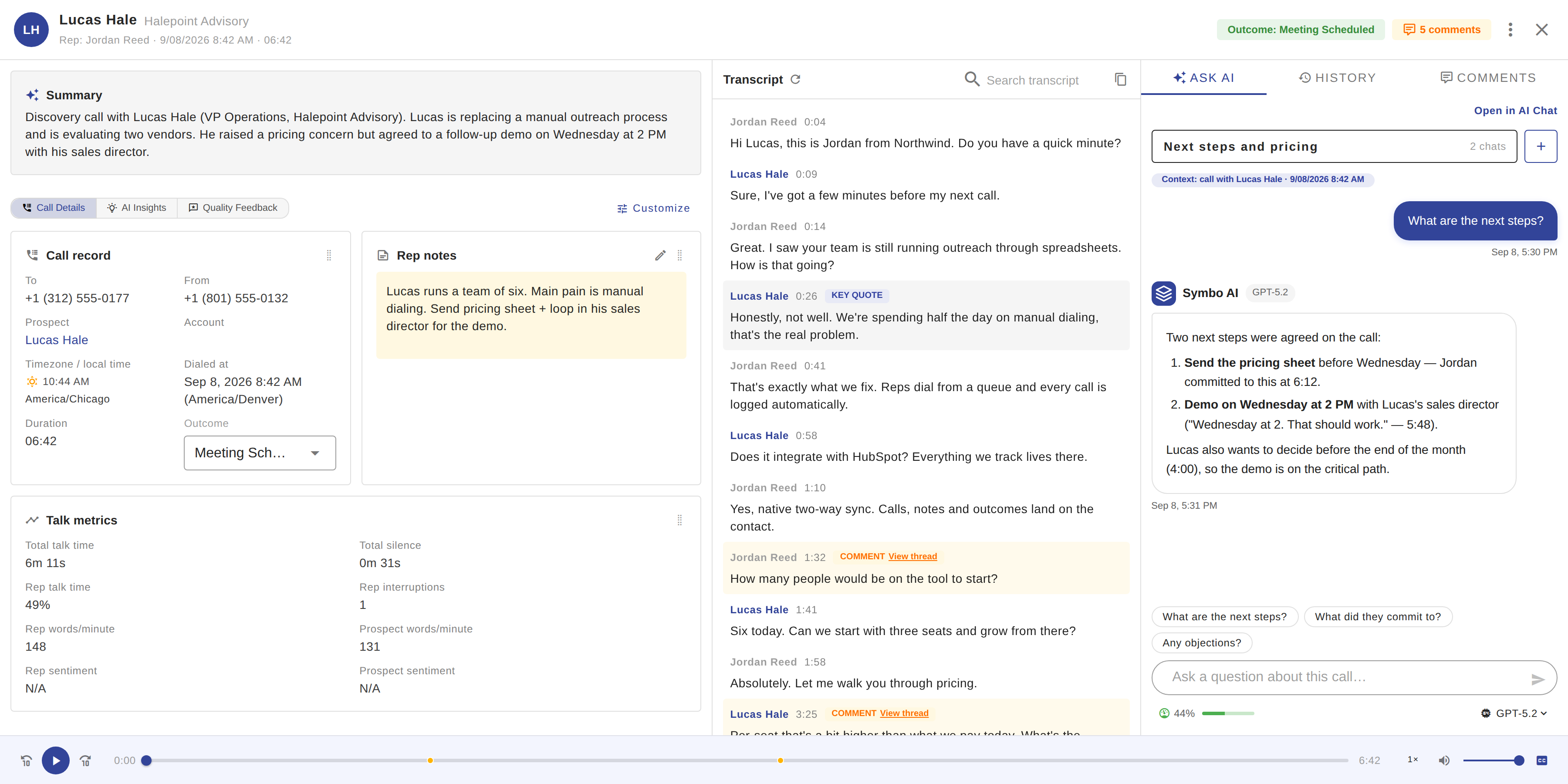
Wide screens (1700px and wider): three panes side by side: cards · transcript · Ask AI / History / Comments. Same content, the transcript just gets its own pane.
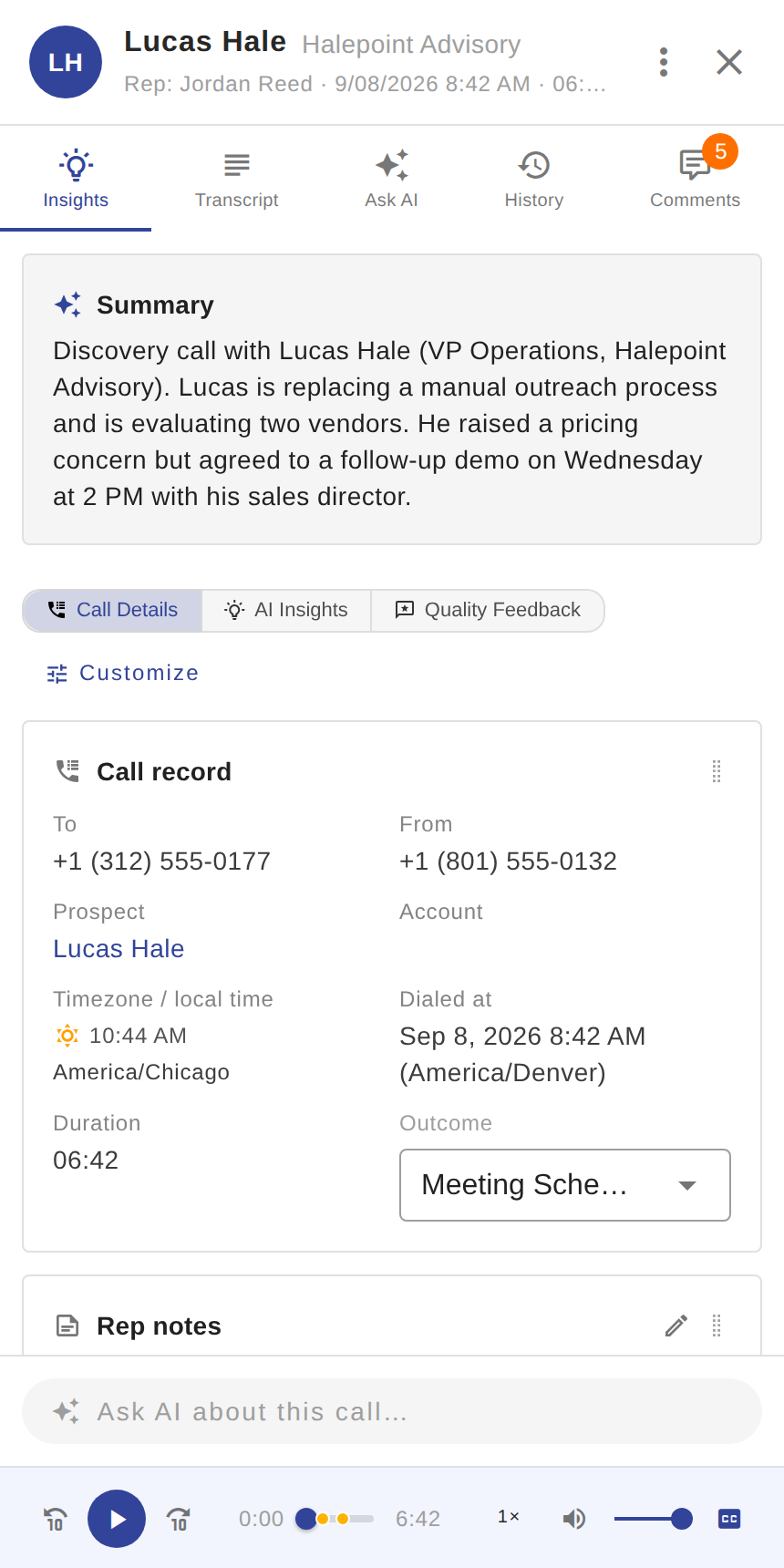
Phone: five tabs at the top: Insights · Transcript · Ask AI · History · Comments, with an "Ask AI about this call…" bar docked under Insights.
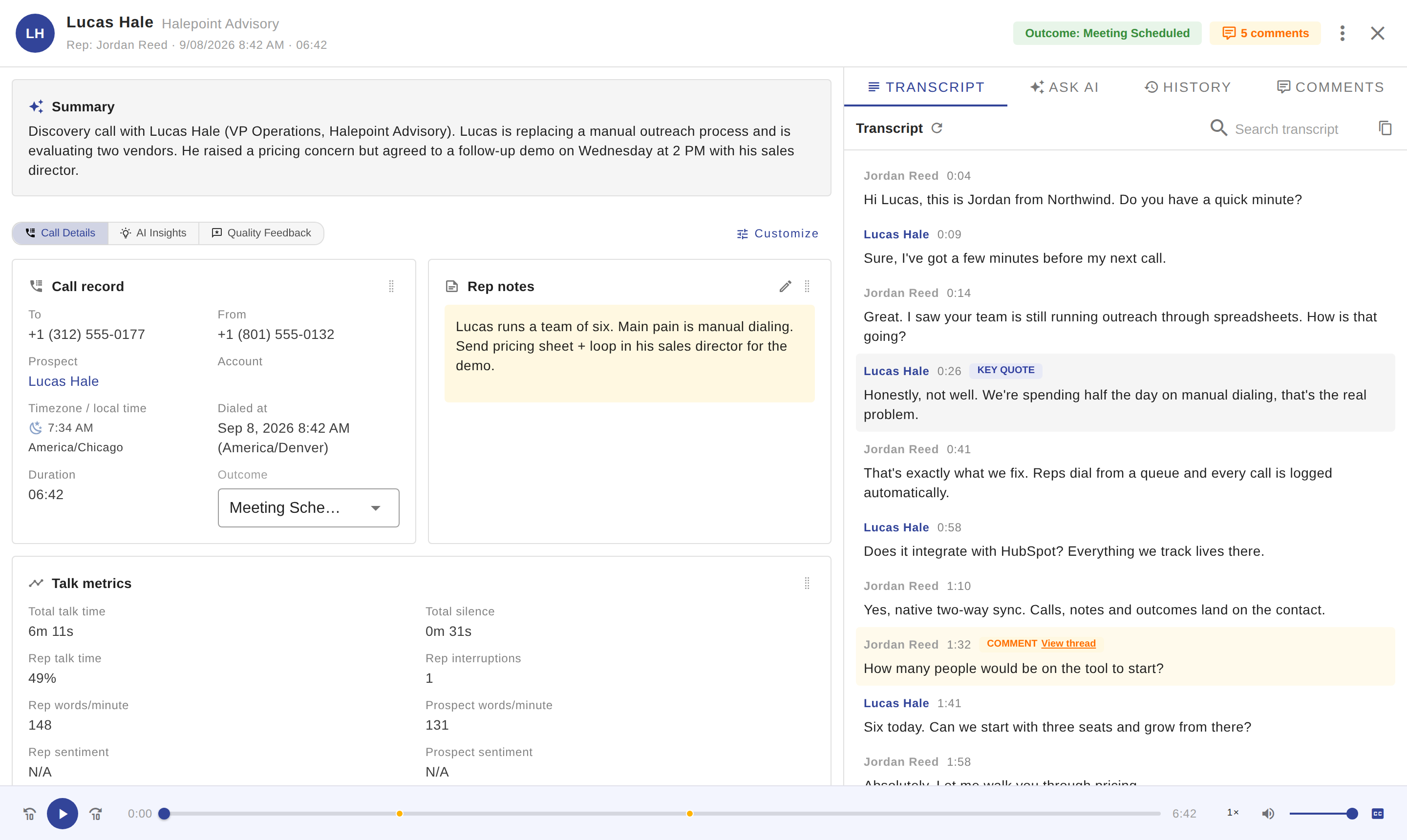
Contact avatar or company logo, contact name and company, then a line with the rep, the call date and the duration.
Outcome chip when an outcome is logged. If the AI suggested a different outcome, a small amber lightbulb next to it shows the suggestion on hover.
"N comments" chip. Click it to jump to the Comments tab.
⋯ menu: Regenerate transcript, and Sync to CRM when your org has a CRM connected.
× or Escape closes the dialog.

Pinned at the top of the left column:
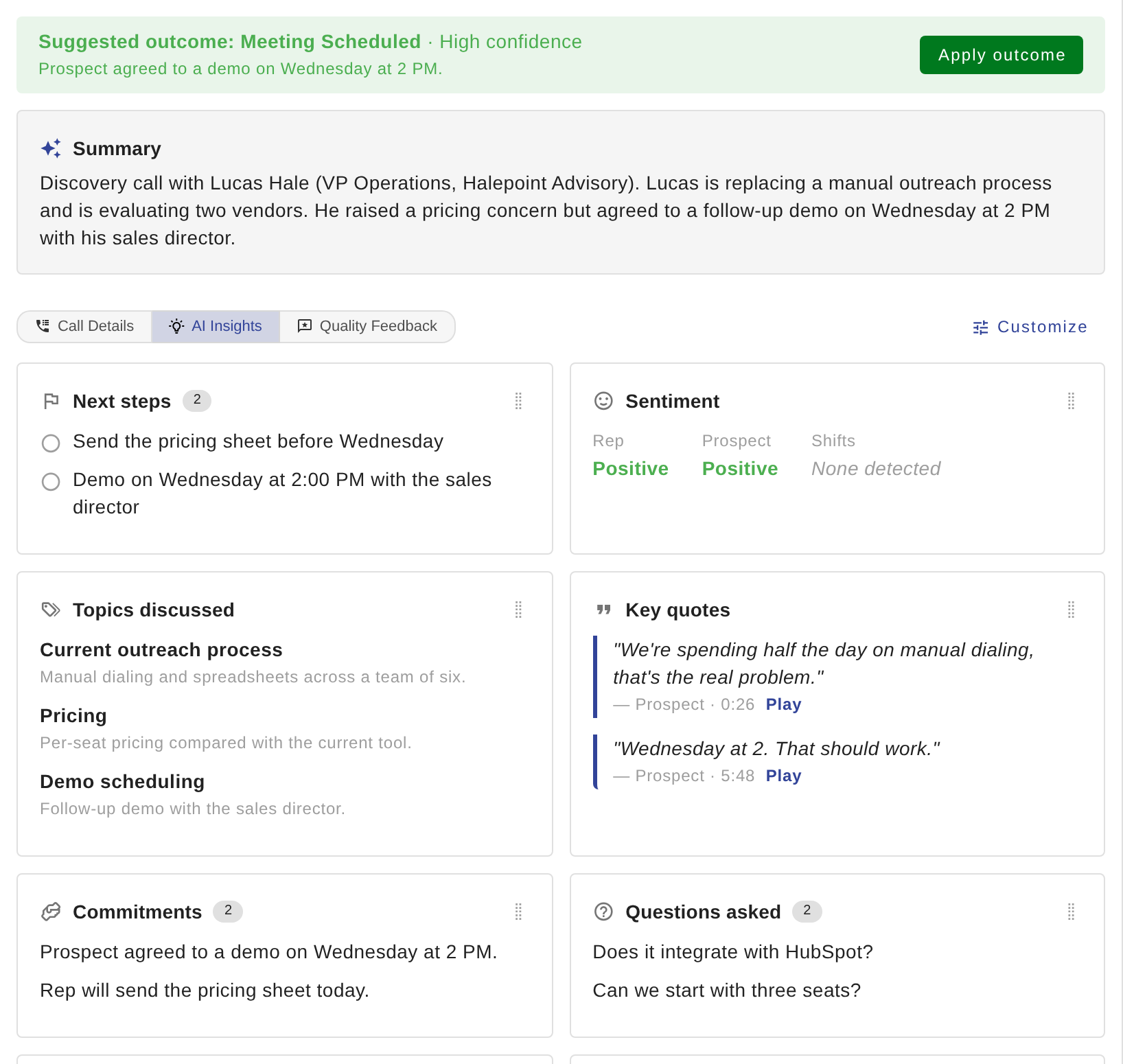
Summary: a short AI summary of the call.
Suggested outcome: the outcome the AI thinks fits, with a confidence level and the reason. Click Apply outcome to log it. The banner only appears while the call has no outcome yet.
If the call never reached a real conversation (voicemail, gatekeeper, wrong number) you see a note saying the transcript was not usable. If insights are not generated yet, a placeholder says so.
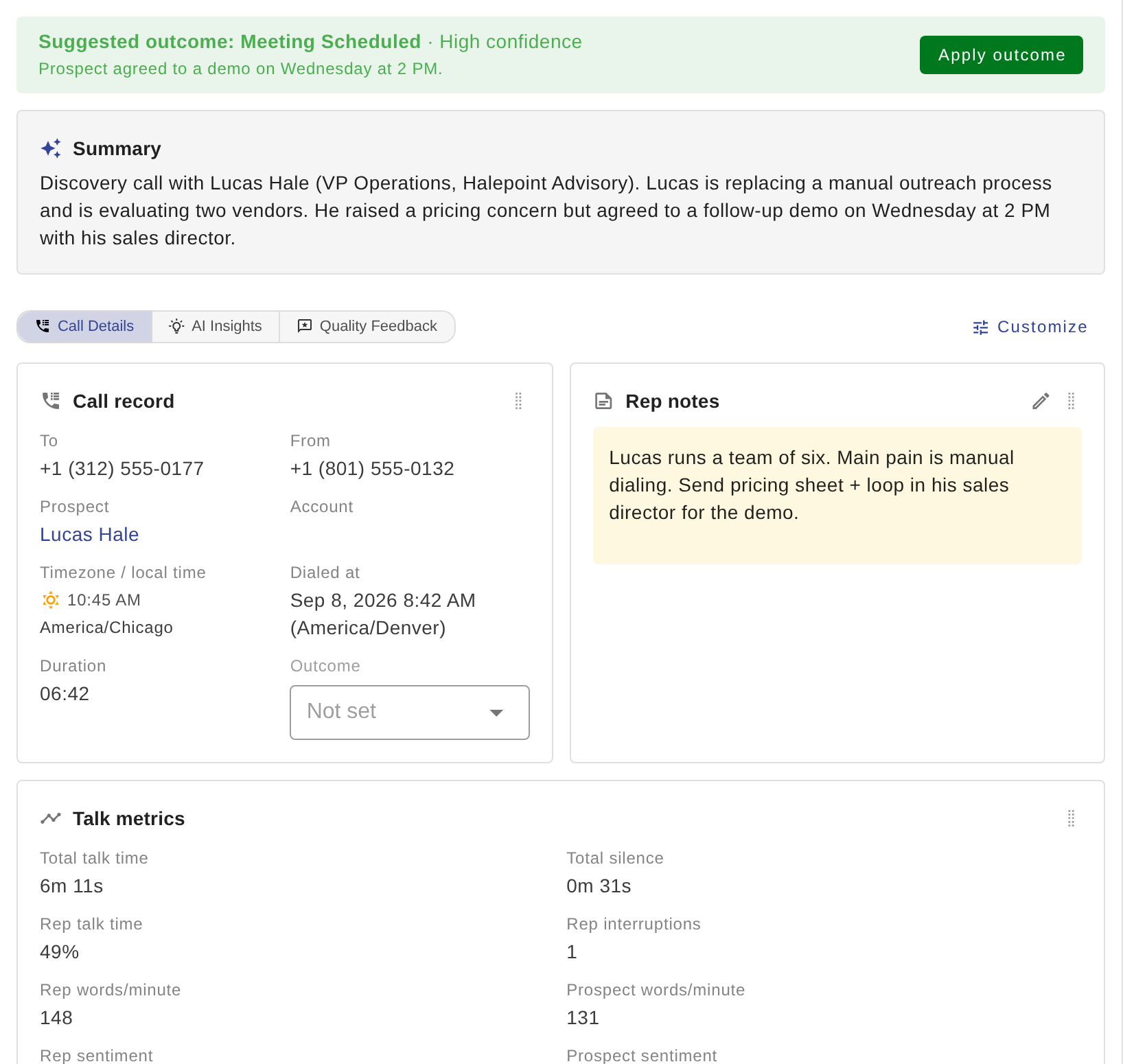
Under the summary, three group tabs switch between sets of cards.
Call Details holds everything from the old dialog:
Call record: To / From, prospect and account links, the contact's local time, dialed at, duration, the outcome dropdown, and voicemail players.
Rep notes: the call note. Click the pencil to edit.
Talk metrics: talk time, silence, words per minute, interruptions.
Call fields: your org's custom call fields, editable in place.
AI Insights: Next steps, Sentiment, Topics discussed, Key quotes (each with Play), Commitments, Questions asked, the AI call signal, and other signals such as objections, pain points, budget and timeline, competitors and decision makers. Empty sections say "None detected".
Quality Feedback: the call quality rating, issues, note and spam flag.
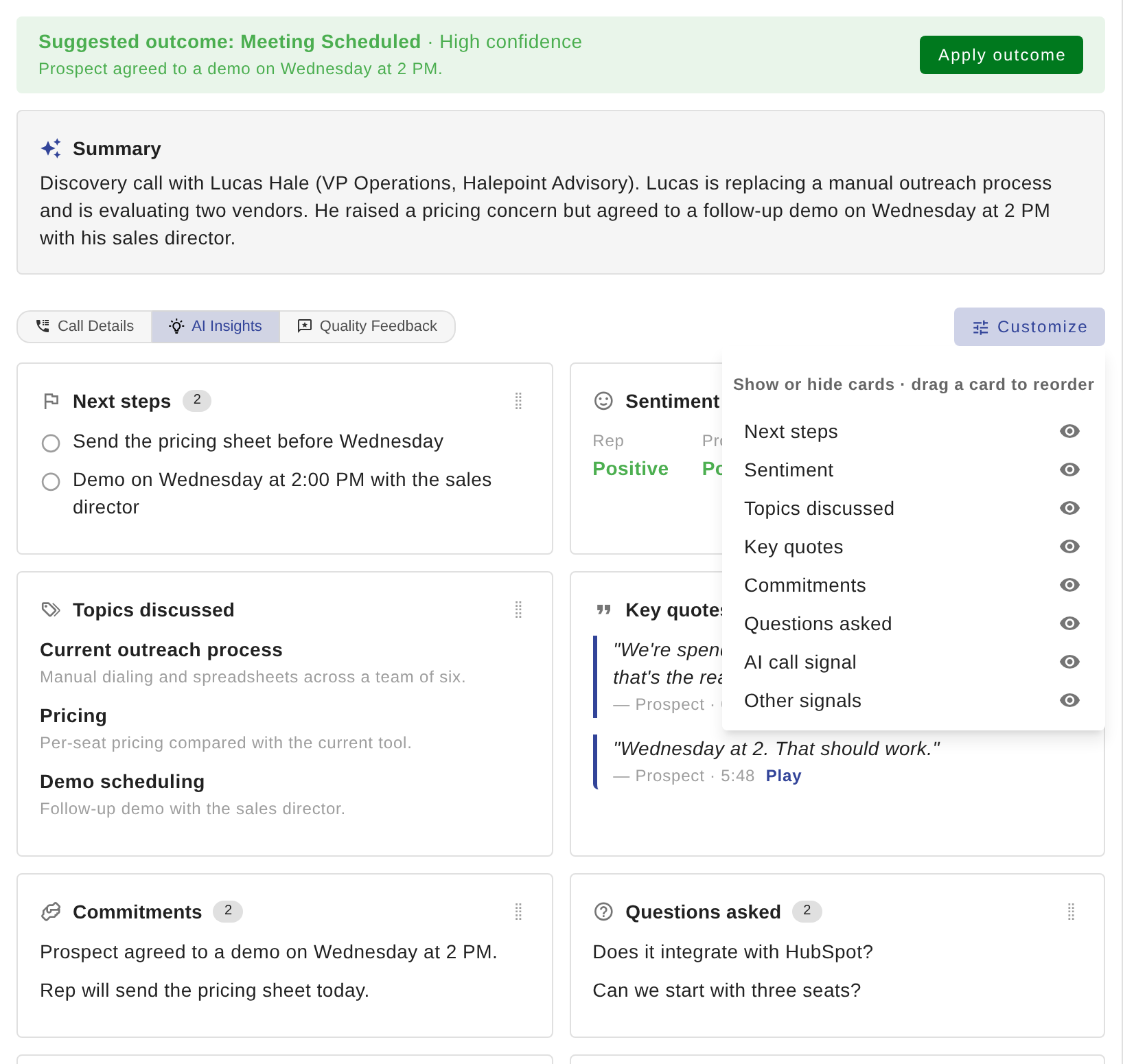
Click Customize to hide or show cards in the current group, and drag a card to reorder. Your layout is saved for you and applies to every call.
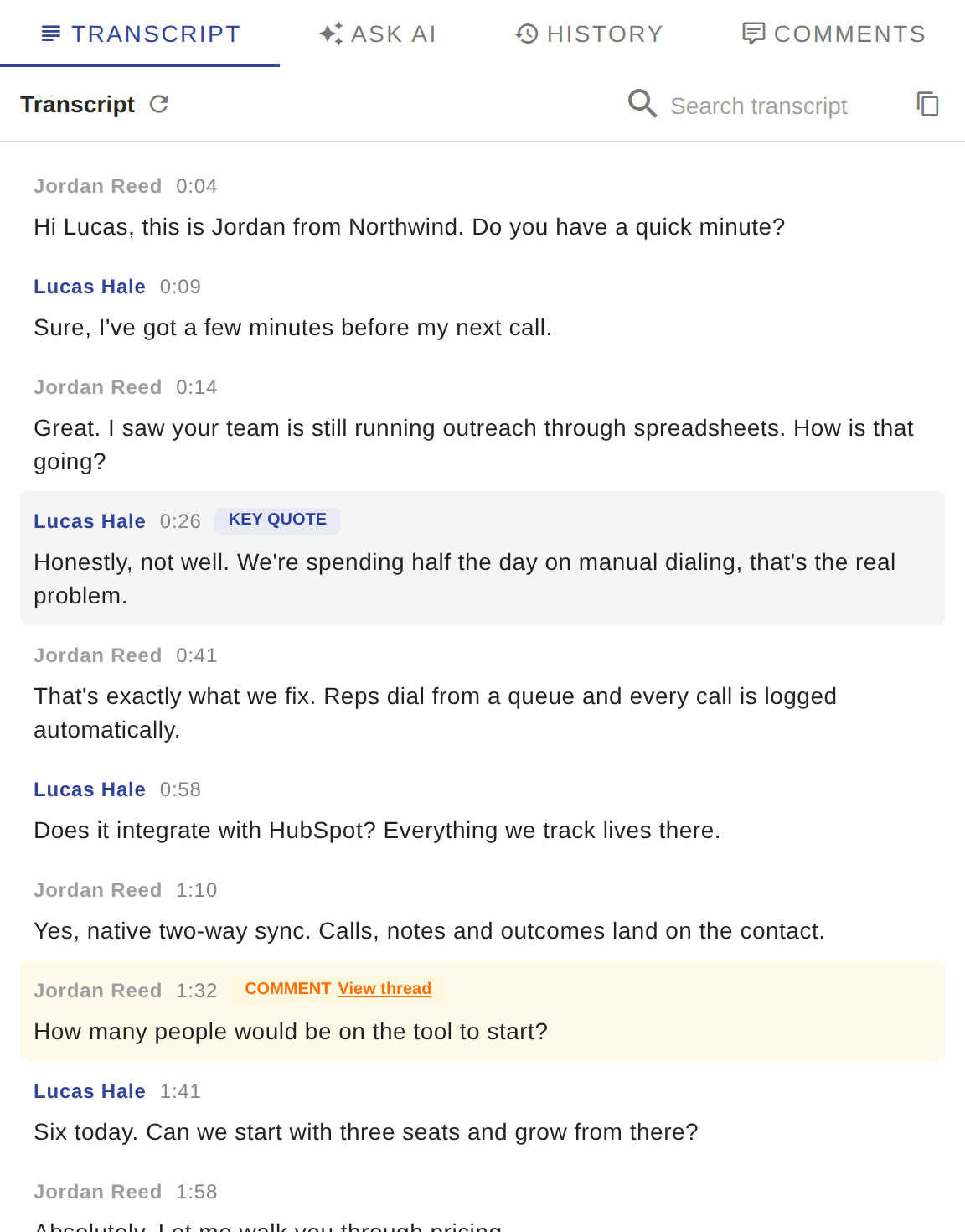
On a laptop the transcript is the Transcript tab in the right pane (selected by default). On a wide screen it is the middle pane.
Each line shows the speaker and a timestamp. Click the timestamp to play from there.
Search transcript filters the lines and highlights matches. The copy button copies the whole transcript.
Labels: KEY QUOTE (an AI key quote), NEXT STEP (a next step was agreed), COMMENT · View thread (a comment is attached to that moment; click to open it).
Missing or wrong transcript? Use ⋯ → Regenerate transcript.
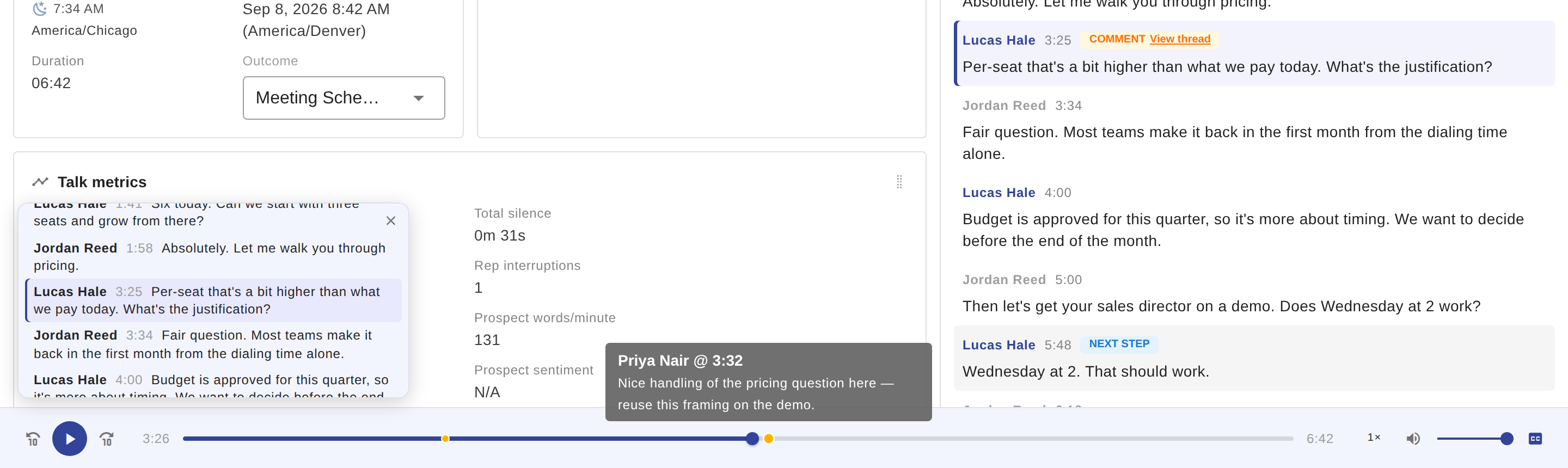
The player is the bar pinned to the bottom of the dialog. It only appears when the call has a recording.
Play / pause, −10s / +10s, scrubber, playback speed (0.5× to 2×), volume.
CC shows a floating mini transcript that follows the audio; click a line to jump.
Amber dots on the scrubber are comments attached to a moment in the call. Hover to read, click to open the Comments tab.
Seeks from Play on a key quote, a transcript timestamp, or a comment all use this one player.
Ask AI is an add-on that has to be enabled for your organization. If you do not see the Ask AI tab, contact Symbo support to have it switched on.
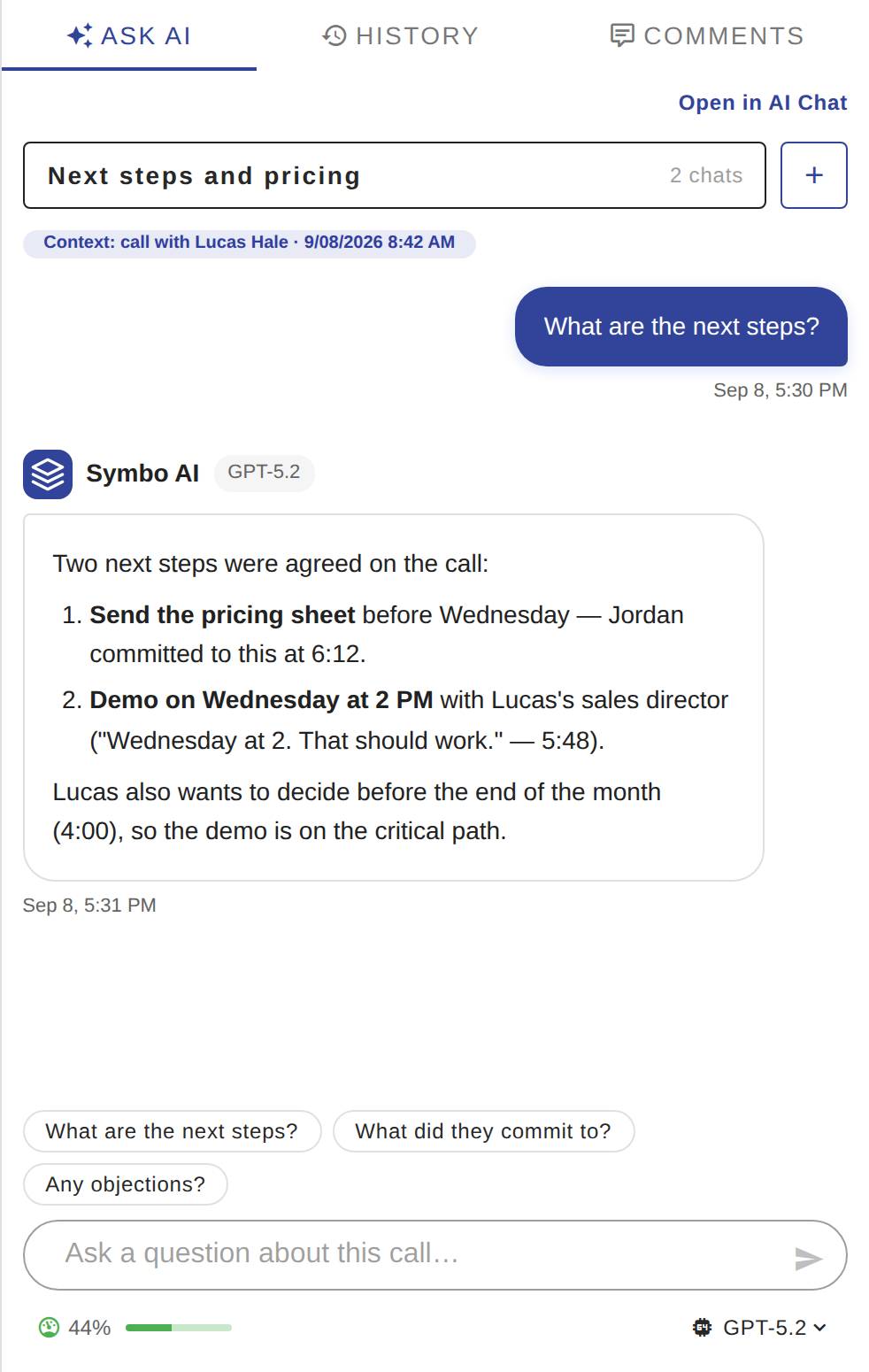
The Ask AI tab is an AI chat that already knows this call: the transcript and insights are loaded. Ask "what are the next steps" or "any objections" and get answers that quote the transcript with timestamps.
Suggested question chips sit above the input.
You can have several chats per call. The switcher at the top lists them; + starts a new one.
Open in AI Chat continues the same conversation on the full AI Chat page.
Pick a model below the input. The usage indicator shows how much of your monthly AI allowance is used; hover it for details. When the monthly or hourly limit is reached the input is disabled and a banner explains why.
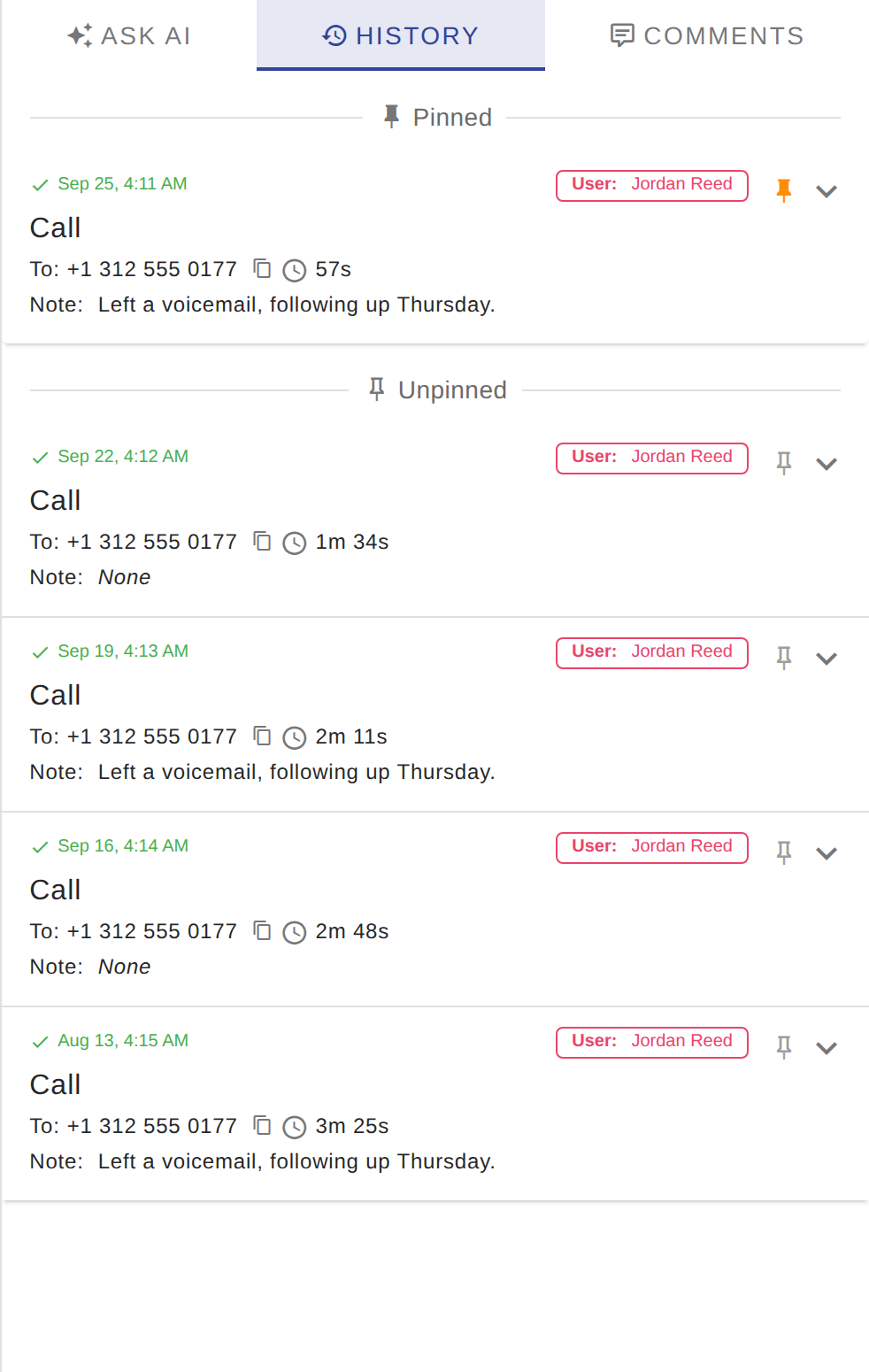
The History tab shows the contact's activity timeline (calls, emails, tasks, notes), the same list as the dialer's Contact History, with pinning. For a number that matched an account but no contact it shows the account's history. Unknown calls have no History tab.
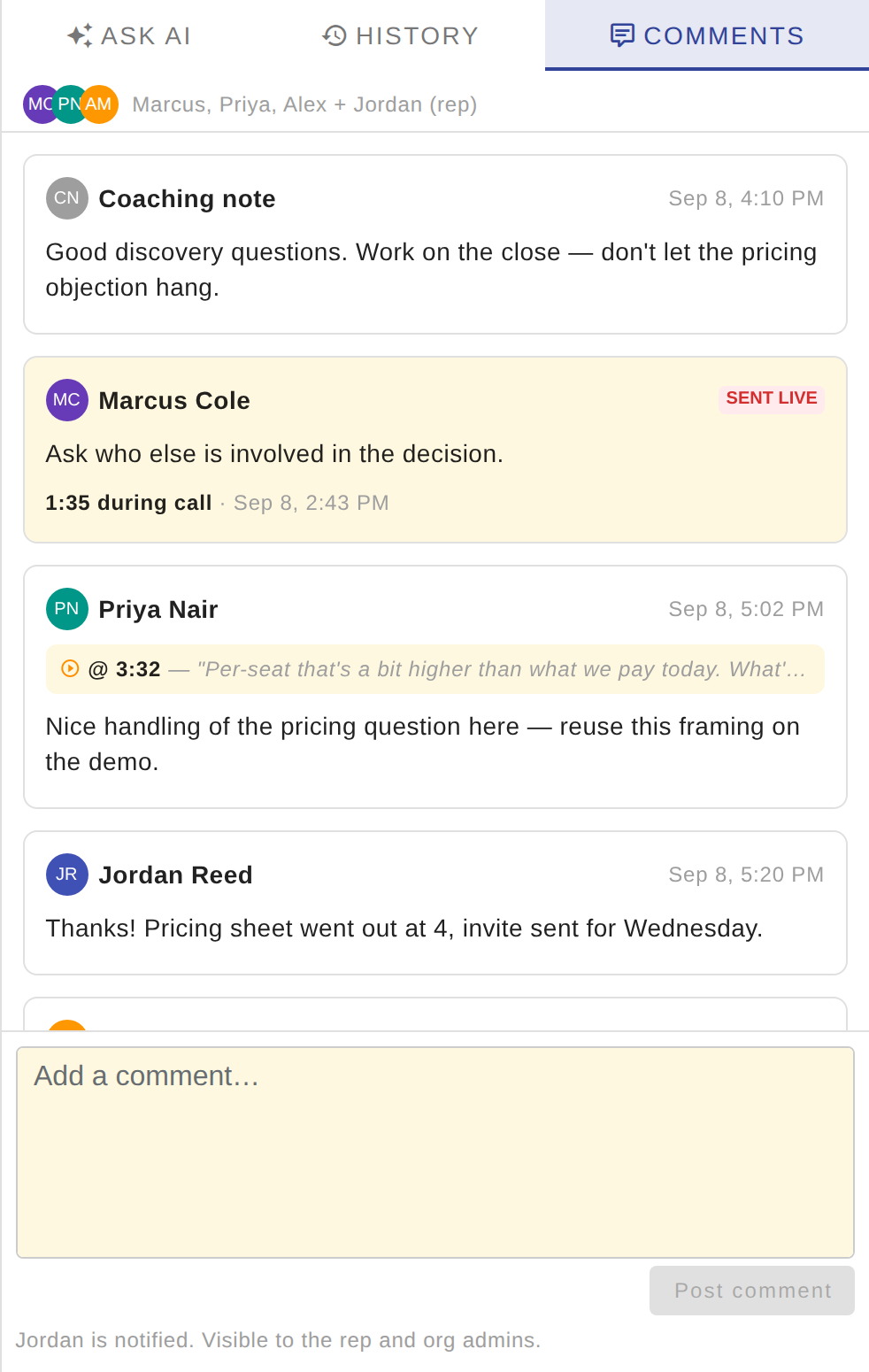
A call now has a comment thread instead of a single coaching-note box.
Post: type in the composer at the bottom and click Post comment or press Cmd/Ctrl+Enter. Formatting, images and @mentions work.
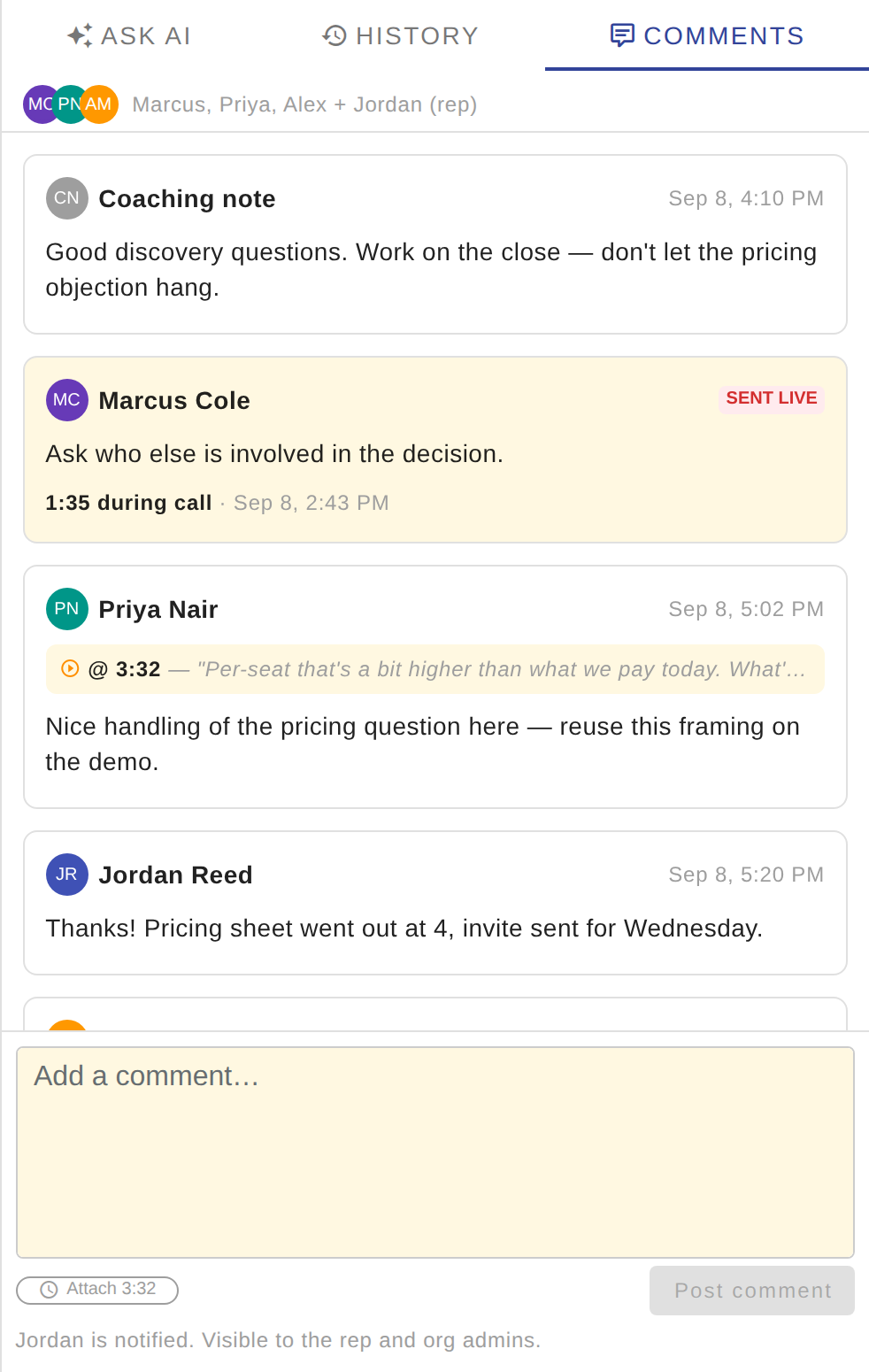
Attach a moment: while the recording is playing or paused, click Attach m:ss. The comment gets an amber @ m:ss strip quoting that transcript line, a dot on the scrubber, and a COMMENT label on the transcript line.
Live comments: comments sent from the Live Calls page while the call is in progress are badged SENT LIVE with the moment they were sent.
Edit / delete your own comments from the menu on the comment.
Notifications: the rep, earlier commenters, anyone who joined the call live, and anyone @mentioned who can open the call get "dropped a comment on call" in the notification center, filed under Comments. Clicking it opens the call on the Comments tab.
Who can do what: anyone who can open the call can read; org admins and the call's rep can post; only the author can edit or delete.
Old coaching notes were moved into the thread automatically. They appear as a comment with a neutral avatar and no author name (the old field never recorded who wrote it) and cannot be edited.
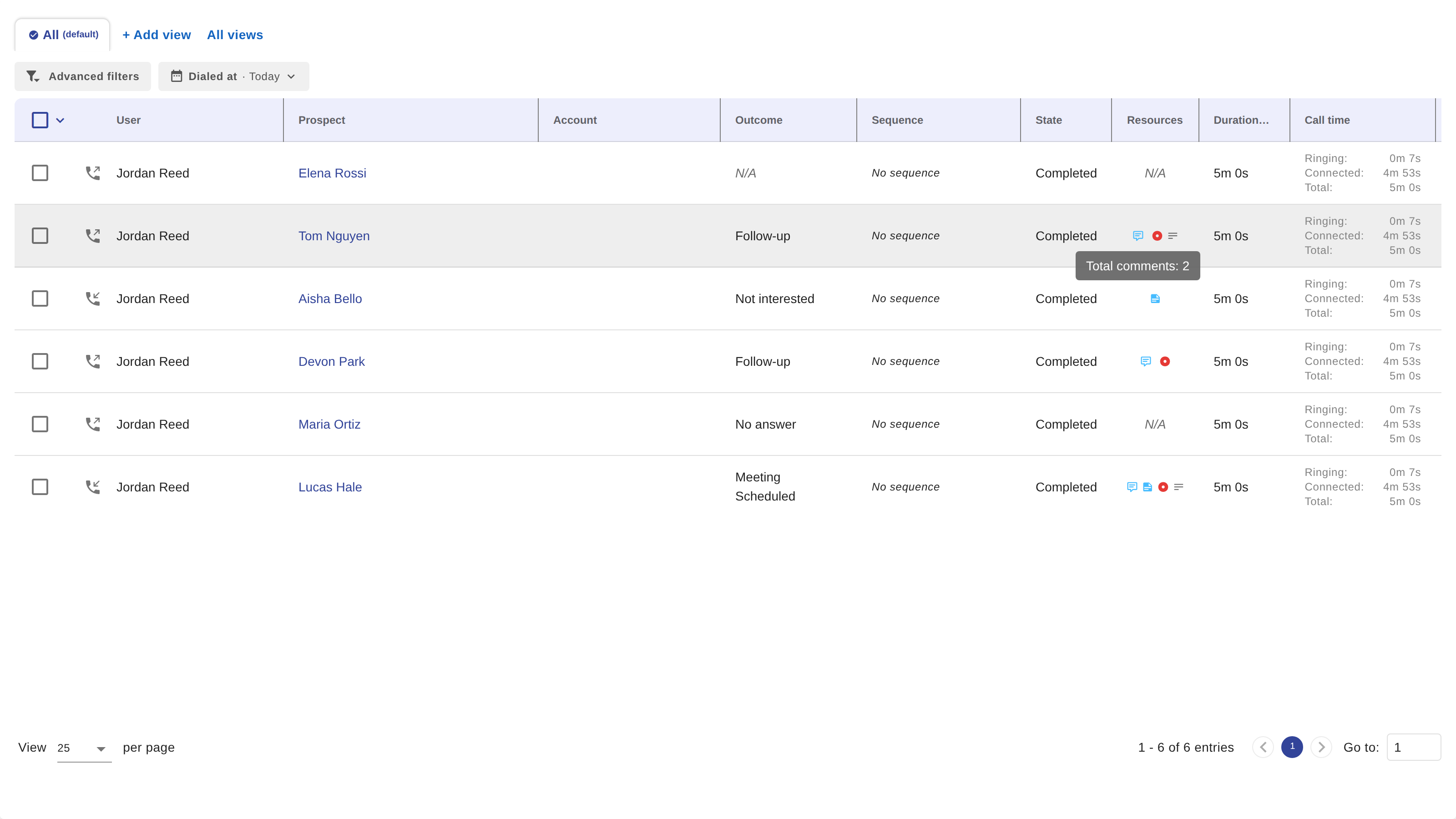
The Resources column shows a comments icon (speech bubble) for calls with one or more comments. Hover for Total comments: N. This replaced the whistle icon.
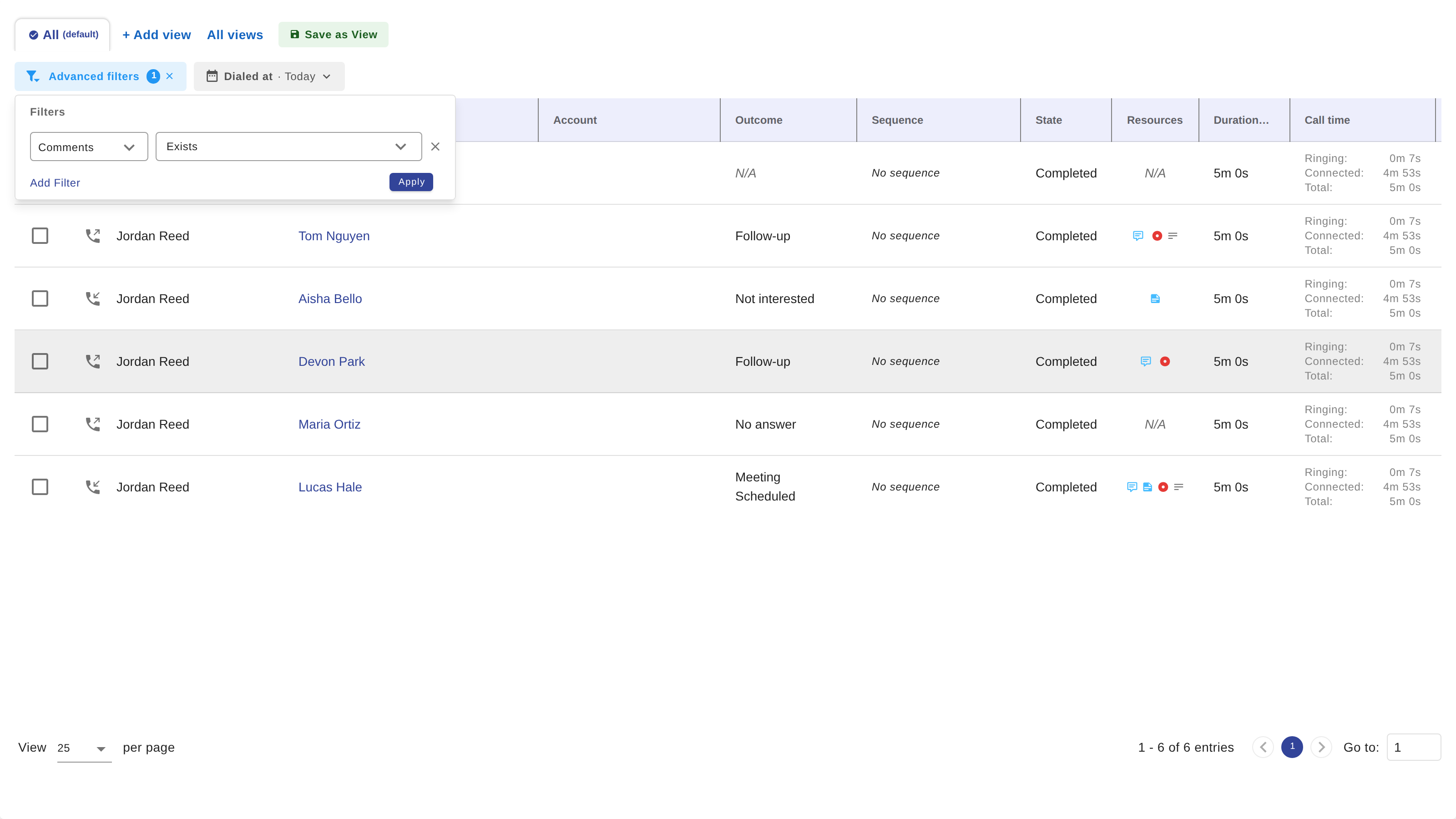
Advanced filters → Comments (Exists / Doesn't exist) replaced the Coaching Note filter. The built-in "Has comments" view replaced "Has coach note". Saved views that used the old filter need the Comments filter added again.
Coaching note → Comment
Coaching notes section → Comments tab
Whistle icon → comments icon
Coaching Note filter → Comments filter
"Has coach note" view → "Has comments" view
"Coaching note added" notification → "dropped a comment on call"
Insights / Details toggle → Call Details / AI Insights / Quality Feedback group tabs
Call note → Rep notes card
Call feedback → Quality Feedback group
Inline audio player → player bar at the bottom
Transcription → Transcript pane
