The Symbo MCP server lets you connect AI assistants — like Claude, Cursor, and other tools that support the Model Context Protocol (MCP) — directly to your Symbo data. Once connected, you can ask your assistant questions in plain language, like "Which of my prospects haven't been touched in two weeks?" or "Summarize my calls from yesterday and list the main objections," and it will answer using your live Symbo data.
The Symbo MCP server is in beta, and access is by request. Reach out to Symbo support through the in-app chat to have it enabled for your team. The beta is read-only: your assistant can look up and analyze your data, but nothing it does can change your Symbo account. Tools that write — creating and updating records — are on the roadmap, and we're releasing tools gradually in carefully reviewed waves.
Read-only, for now. During the beta, the MCP server can look up and analyze your data but cannot create, edit, or delete anything — and it cannot send emails, texts, or place calls. Write capabilities will arrive in a later wave.
Scoped to you. Every request runs as the Symbo user who authorized the connection and returns only your organization's records.
Secure sign-in. You authenticate with your normal Symbo login through a browser window (OAuth). There are no API keys to create, copy, or store.
Request beta access first. The Symbo MCP server is in beta and access is enabled per organization — it is off by default. Contact Symbo support through the in-app chat to request access for your team before connecting.
You need an active Symbo account.
Your AI tool must support remote MCP servers with OAuth sign-in (Claude web/desktop, Claude Code, and Cursor all do).
Server URL |
|
Transport | Streamable HTTP |
Authentication | OAuth — sign in with your Symbo login in the browser |
Access | Beta (by request via support) · read-only · scoped to your organization |
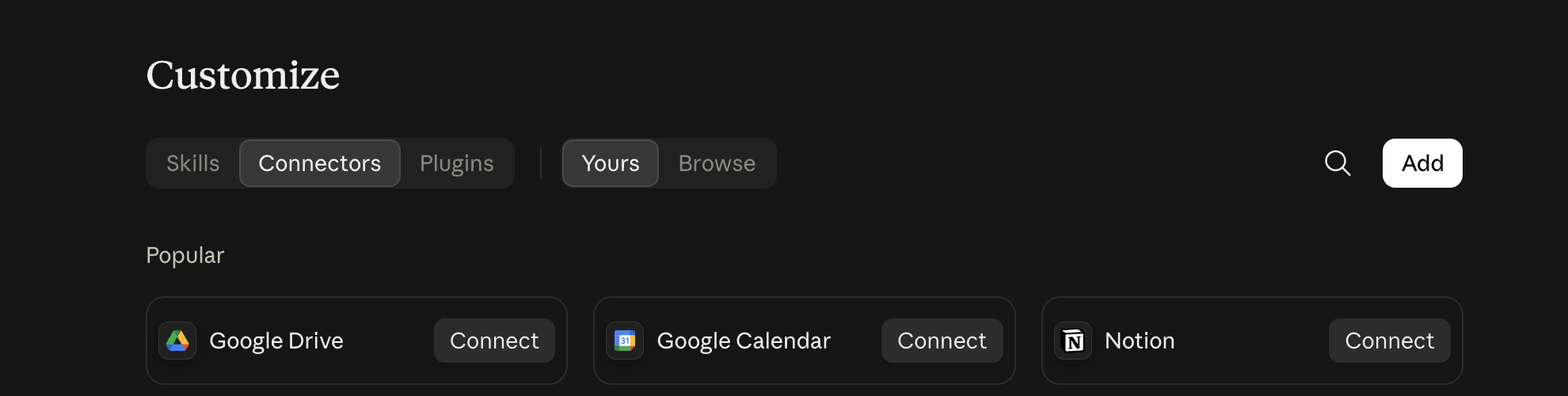
In Claude, open Customize → Connectors from the sidebar, or go directly to claude.ai/customize/connectors.
Click Add in the top right.
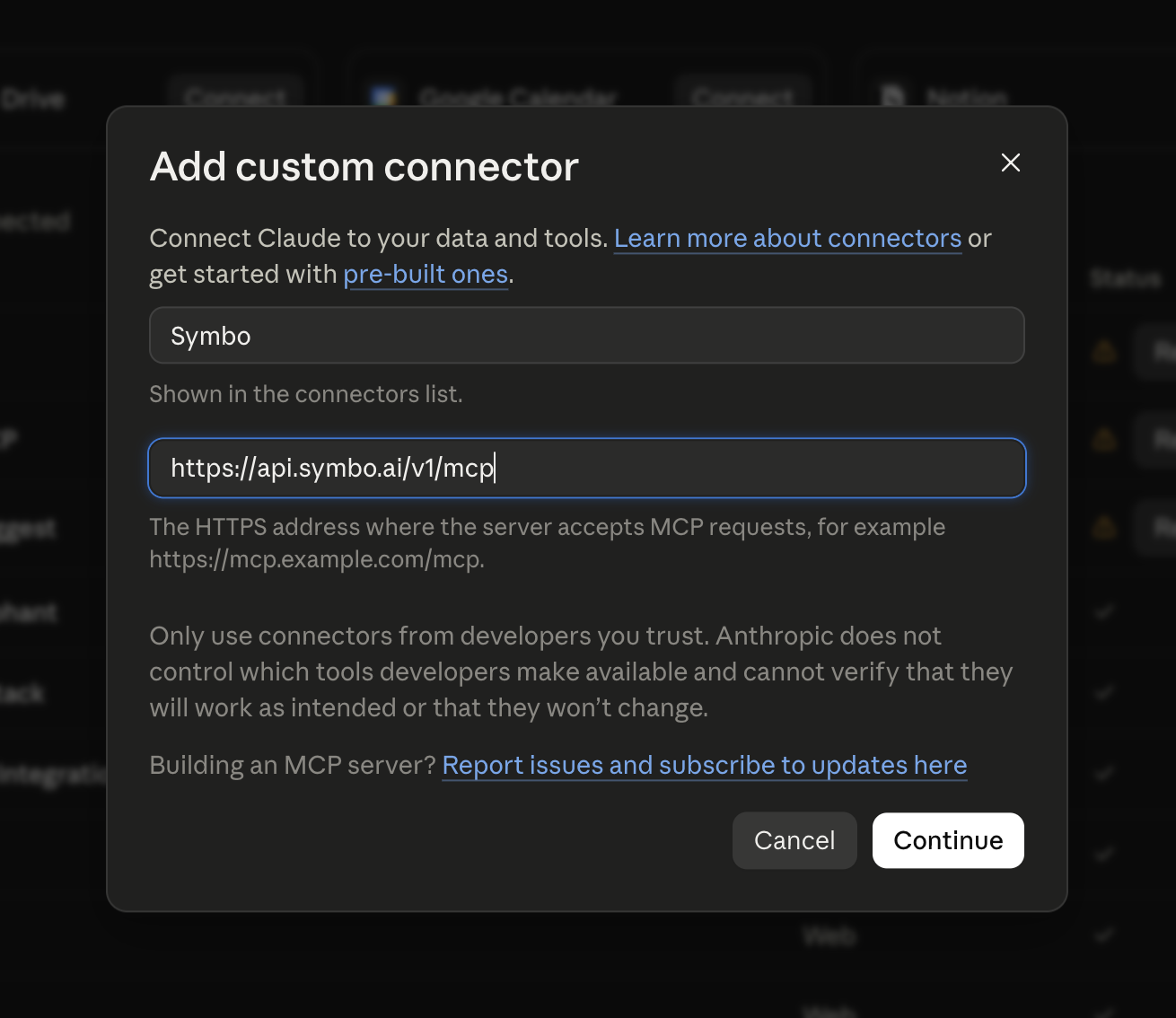
In the Add custom connector dialog, enter Symbo as the name, paste https://api.symbo.ai/v1/mcp into the Remote MCP server URL field, and click Continue.
Claude detects Symbo's security settings automatically — leave the defaults as they are and click Add.
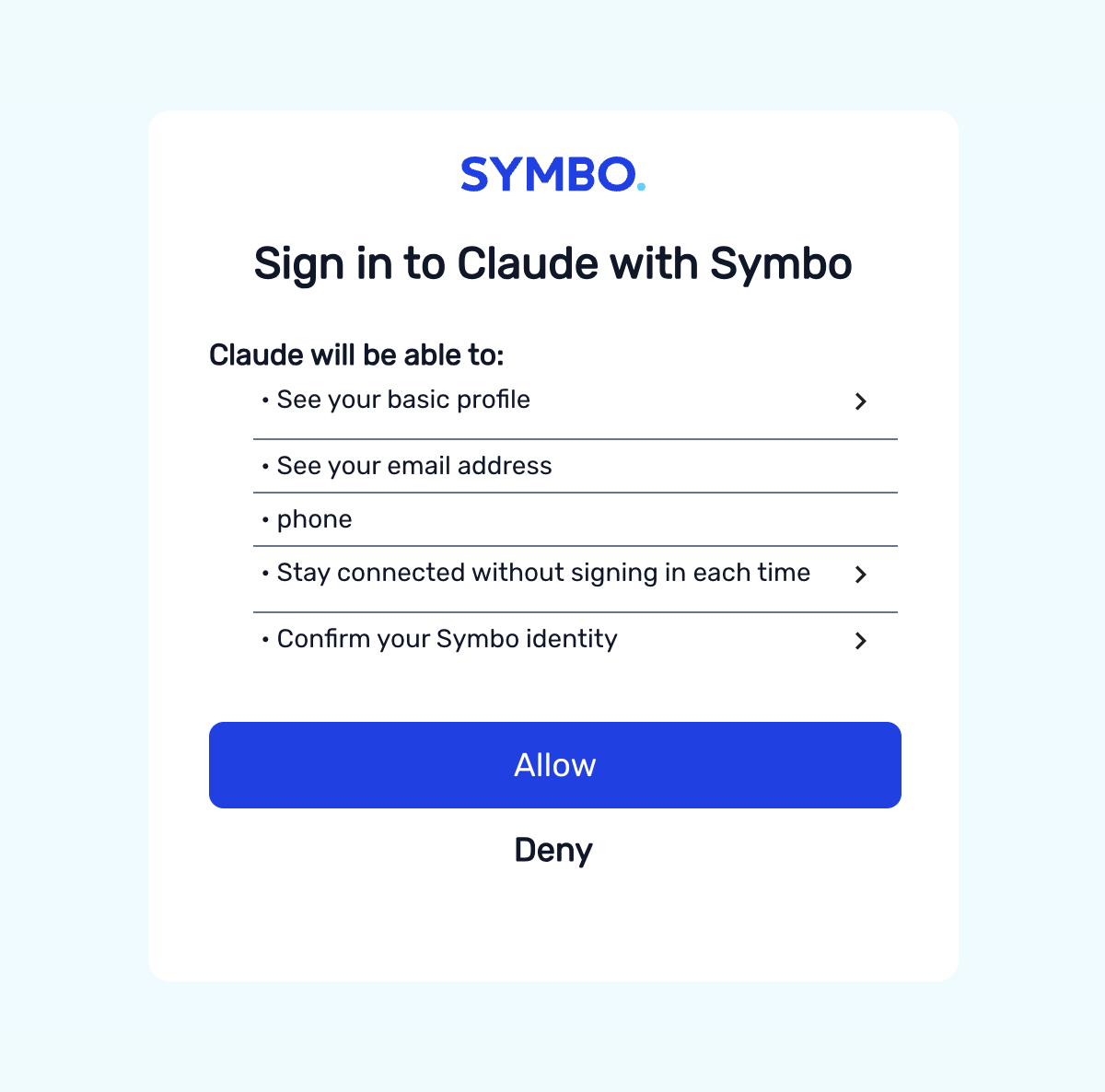
Click Connect on the Symbo connector page. Sign in with your Symbo login if prompted, then click Allow on the "Sign in to Claude with Symbo" screen.
That's it. In any chat, make sure the Symbo connector is enabled in the tools menu, then ask away.
Run this once in your terminal:
claude mcp add --transport http symbo https://api.symbo.ai/v1/mcpThen, inside a Claude Code session, run /mcp and follow the prompt to sign in to Symbo.
Most MCP clients accept a JSON configuration. Add Symbo like this:
{
  "mcpServers": {
    "symbo": {
      "url": "https://api.symbo.ai/v1/mcp"
    }
  }
}
Your client will prompt you to sign in to Symbo in the browser the first time it connects. The client must support remote servers over Streamable HTTP with OAuth — older SSE-only clients will not work.
We're releasing tools gradually: each wave is reviewed for security and tenant isolation before it ships. The beta currently exposes this read-only tool set:
Tool | What it does |
| Returns your organization's prospect schema — built-in fields plus your custom fields, with their keys and types. |
| Finds people — filter by status, owner, tags, account, dates, sequence state, and custom fields. |
| Finds companies by name or broad text search. |
| The activity timeline for a prospect — calls, emails, texts, and completed tasks. |
| The same activity timeline, for an account. |
| Finds calls by date, duration, direction, outcome, and more — each result includes the AI call summary. |
| One call in depth: AI insights (summary, objections, pain points, next steps), the transcript, sentiment, talk-time split, and outcome. |
| Aggregate call metrics — counts, rates, breakdowns, and volume over time. |
| The call outcomes your organization uses to categorize calls, including any automation triggers on each. |
| Lists your sequences — the automated outreach campaigns prospects can be enrolled in. |
| The steps of a sequence, in order, with each step's type, timing, and content. |
| The personalization merge tags available for email and SMS content, like {{prospect.first_name}}. |
| The people in your organization — reps, their names and emails — so questions like "how did Dana do last week?" can be answered. |
| Which CRM your organization has connected (Salesforce, HubSpot, Pipedrive, and more) and its configuration. |
| The mailbox connected for sending and syncing your email. |
As the beta progresses we'll expand this set — more read tools first, and eventually tools that can create and update records. Your connected assistant picks up new tools automatically the next time it connects; you won't need to re-add anything.
"Which of my prospects haven't had any activity in the last 30 days?"
"Summarize my calls from last week and pull out the most common objections."
"Pull up the history for Acme Corp and draft talking points for my next call."
"Walk me through the steps in our outbound SDR sequence and suggest improvements."
Everything is logged. Every tool call is audited against the account that authorized the connection.
Rate limits. Calls are rate-limited per user (bursts of 15 requests per 5 seconds, 150 requests per minute sustained). Normal assistant use stays well under these limits; bulk data extraction will be throttled.
Disconnect any time. Remove the connector in your AI tool's settings to stop its access.
"This organization does not have access to the Symbo MCP server."
Your sign-in worked, but the beta isn't enabled for your organization yet. Contact Symbo support to request access — signing in again will not help.
The client keeps asking me to authenticate
Complete the browser sign-in with the Symbo login you use for the dashboard. If it loops, remove the connector, add it again, and sign in fresh.
"Method Not Allowed" errors
Your MCP client is using the older SSE transport. The Symbo MCP server uses Streamable HTTP — update your client, or check its documentation for Streamable HTTP support.
Rate limit (429) errors
Your assistant is calling too fast. It should wait the number of seconds reported in the error before retrying. Prefer a few broad questions over many rapid-fire narrow ones.
Questions? Reach out to us through the in-app chat — we're happy to help you get connected.
