Think of the Symbo Dialer iOS app as having Symbo right on your phone. It's built for one-off calling on the go, following up with warm leads, or picking up an inbound call when you're away from your desk. Power Dial sessions still need to run from the Symbo web app.
Note: This app is currently in beta. If you run into anything unexpected, we'd love your feedback through the app.
The Symbo Dialer iOS app, available on the App Store (beta)
A Symbo account with calling access on your plan
10 DLC approval for SMS texting (optional)
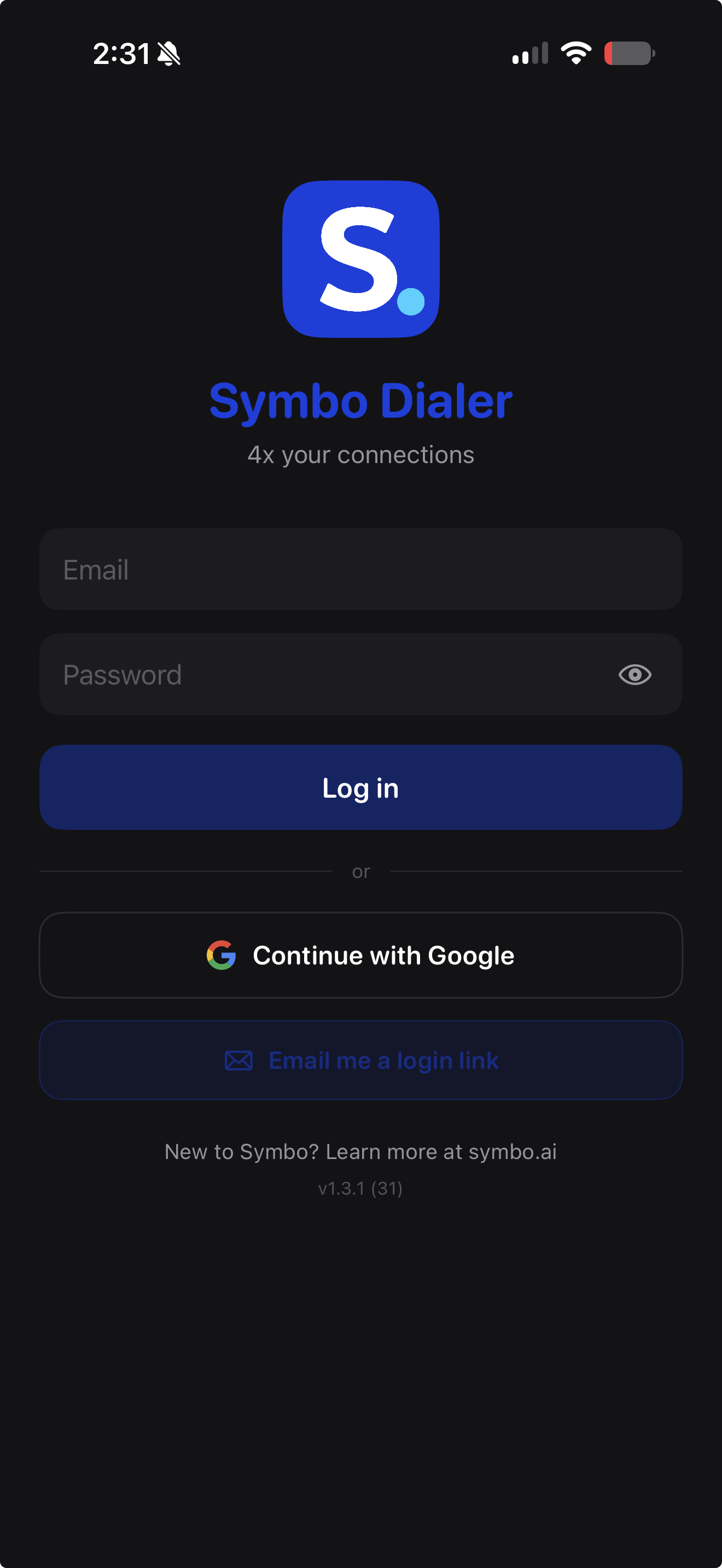
Open the app and sign in using either your email and password, or tap Continue with Google to sign in with your Google account.
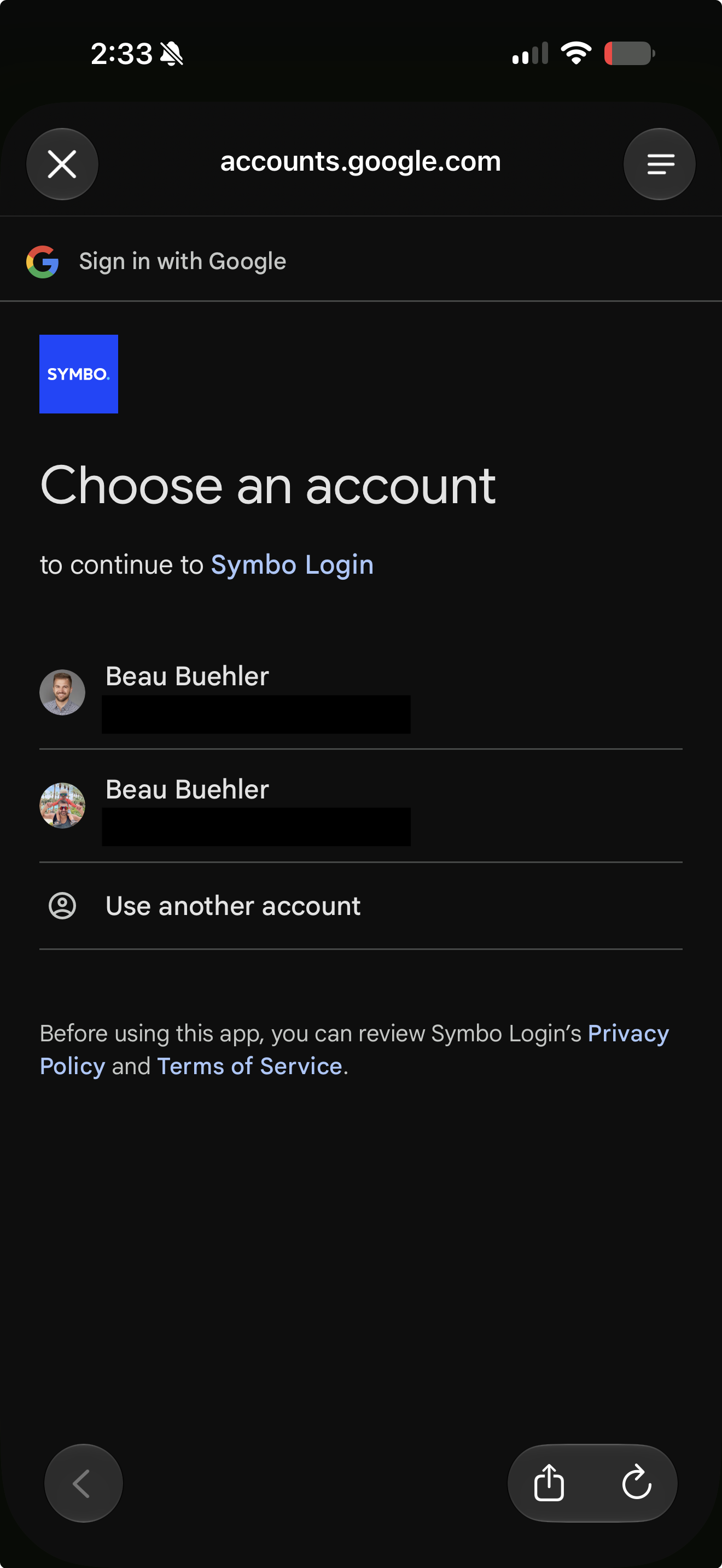
If you sign in with Google and have multiple accounts linked, you'll be asked to choose which one to continue with.
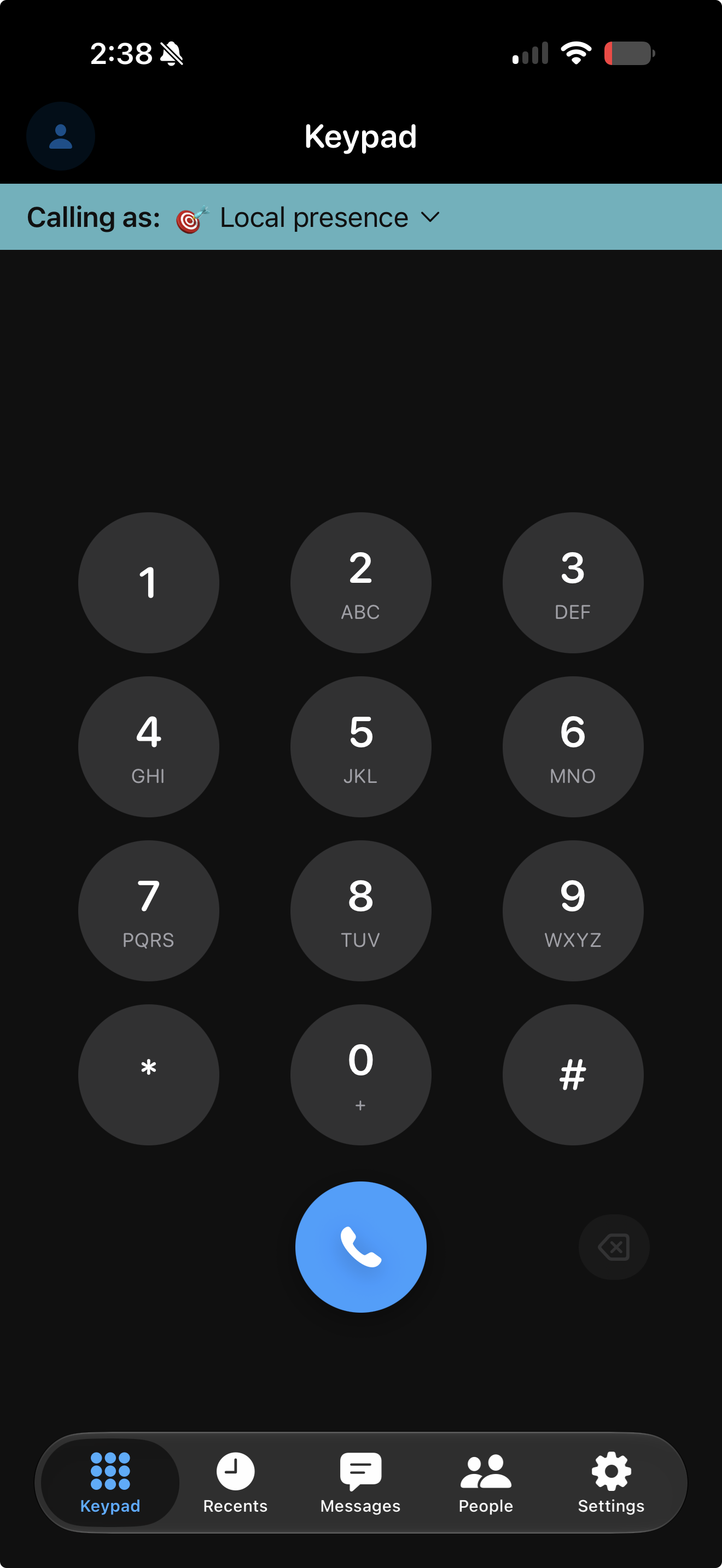
Once you're signed in, you'll land on the Keypad screen, the main dialing interface.
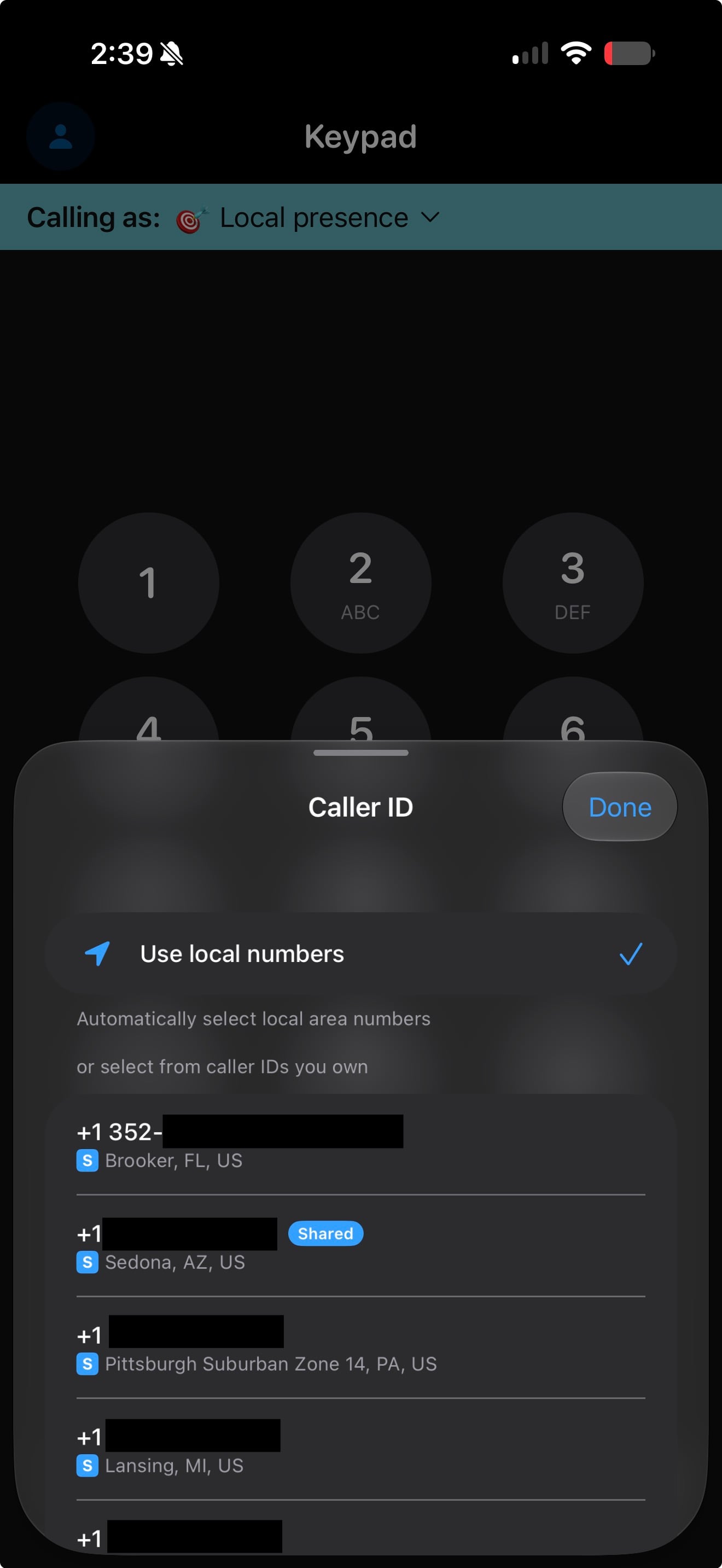
At the top of the Keypad screen, you'll see Calling as followed by your current caller ID, either Local Presence (automatically matched to the area code you're dialing) or a specific number (DID) you've selected manually.
Tap the caller ID dropdown to switch between Local Presence and your saved numbers.
Use the numeric keypad to dial, or search People or Recents to start a call from there.
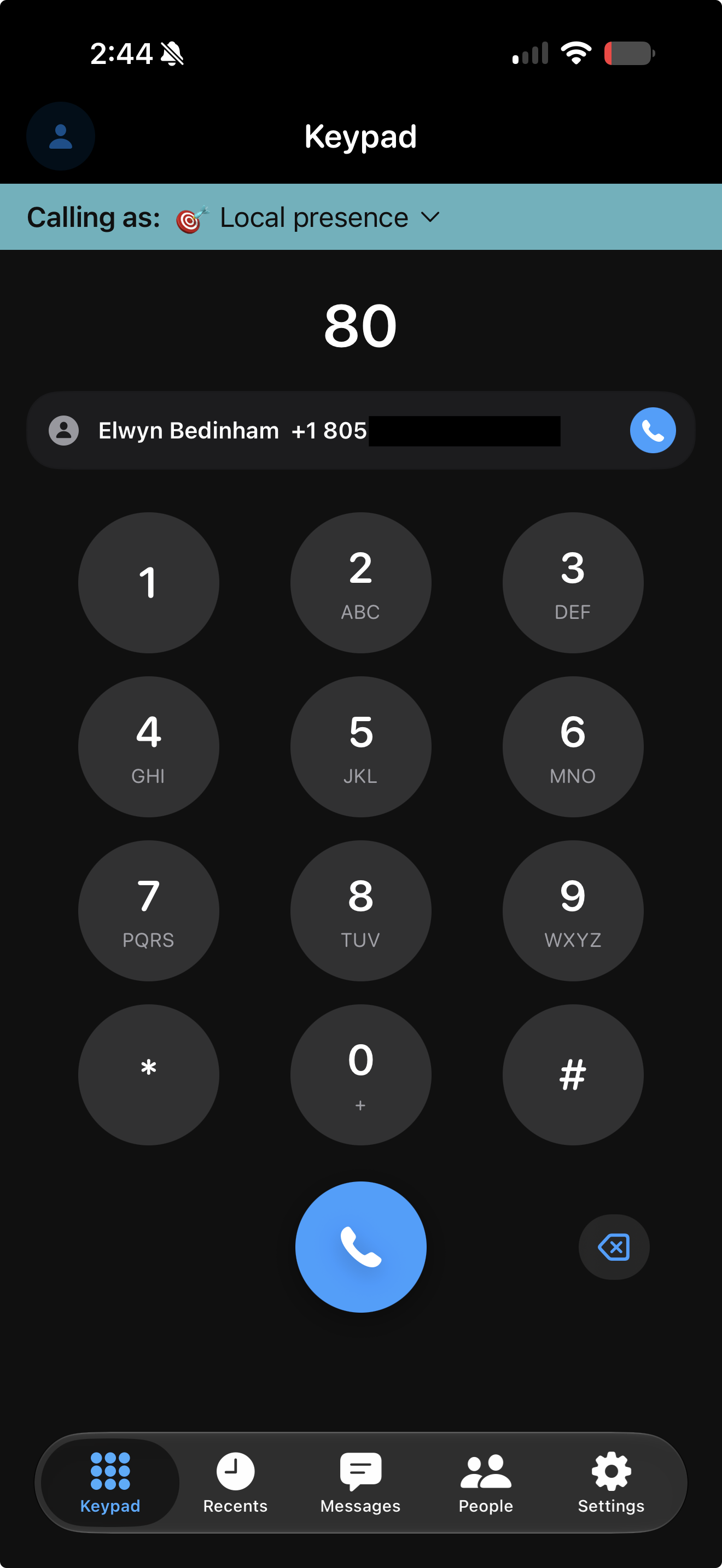
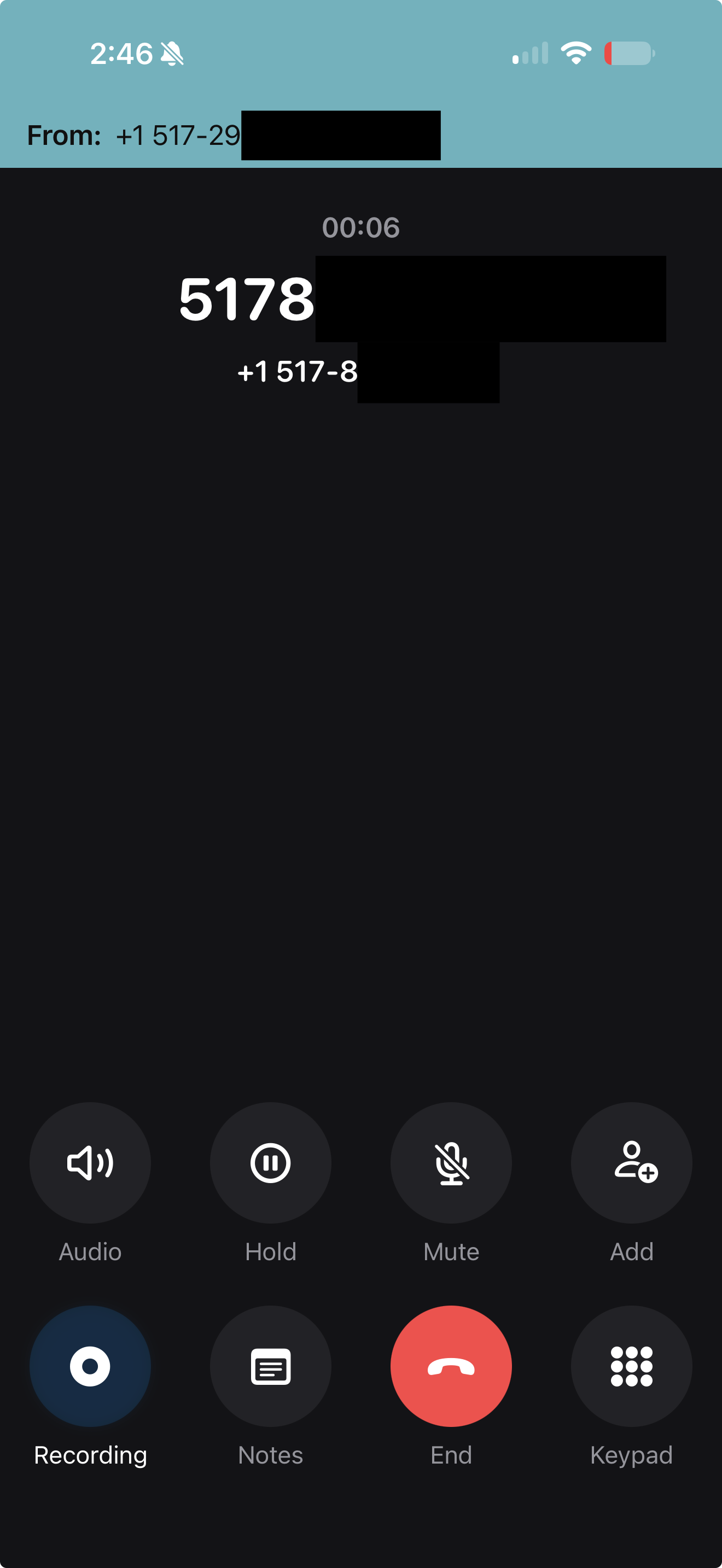
Dial a number and tap the call button to start your call.
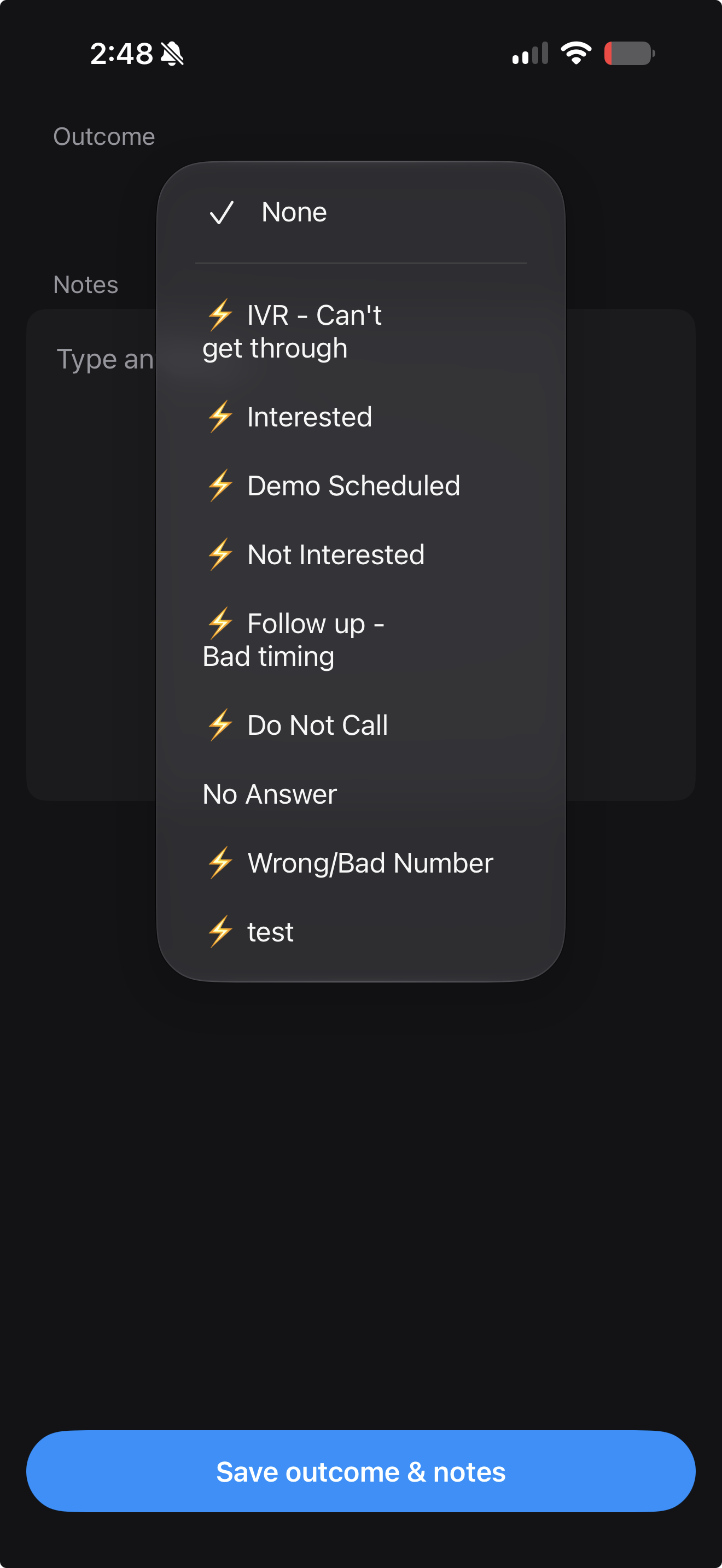
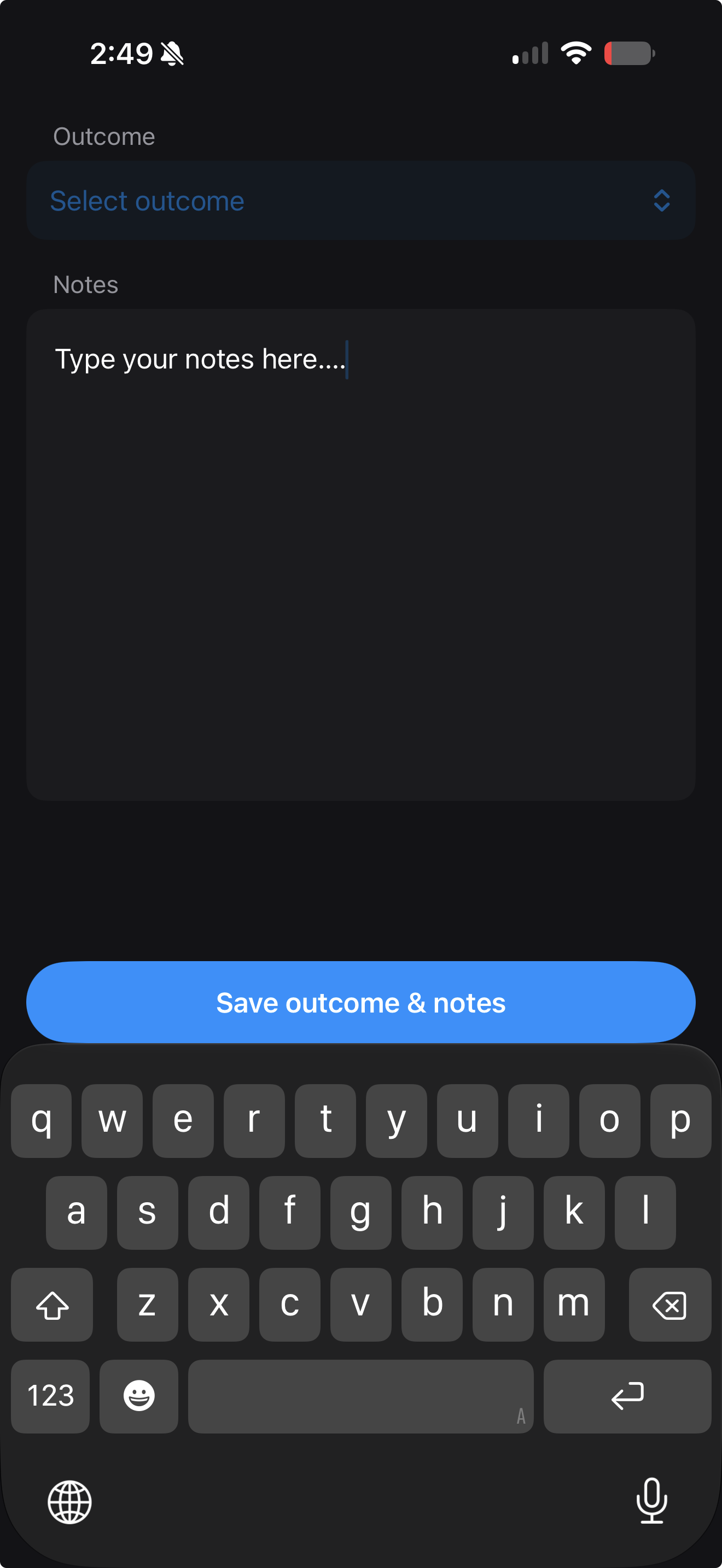
When a call ends, you'll be prompted to log an outcome and add notes:
Tap Set outcome and choose from the list.
Add any notes in the Notes field.
Tap Save outcome & notes to return to the home screen.
The Recents tab shows your call history and syncs across your devices, so a call made on desktop will also appear here shortly after. Tap any call to view its details, including direction, duration, and timestamp.
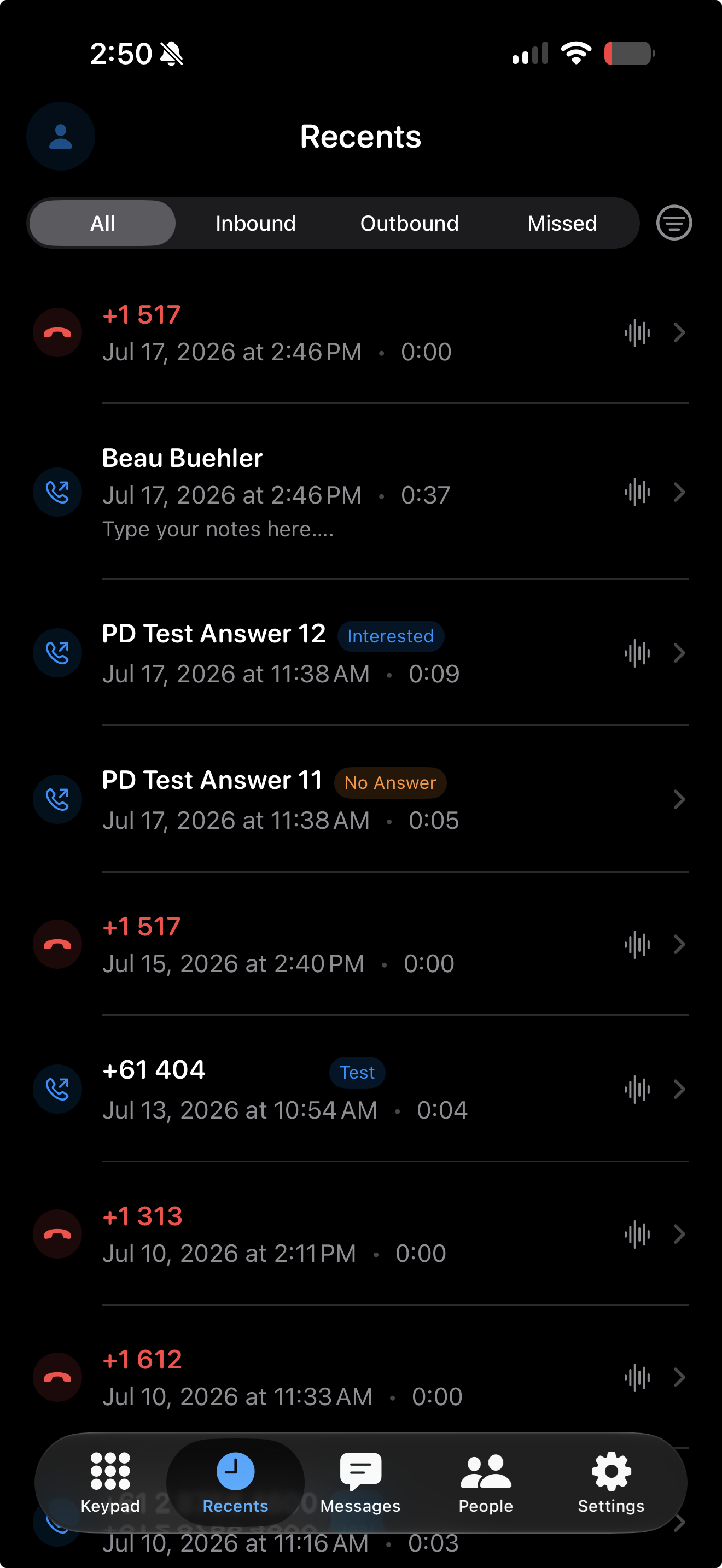
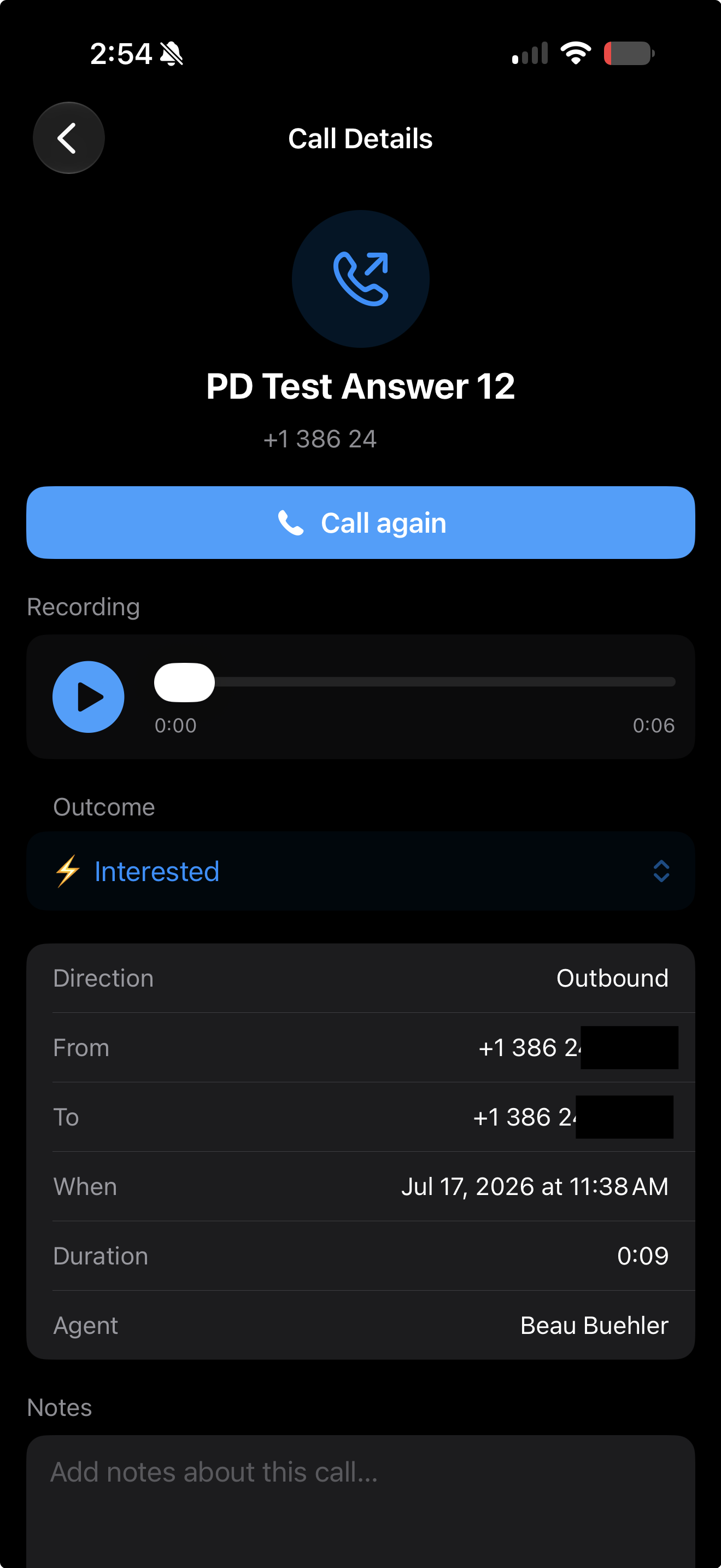
Note: If your Recents list doesn't load or looks out of date, close the app completely and reopen it to refresh the list.
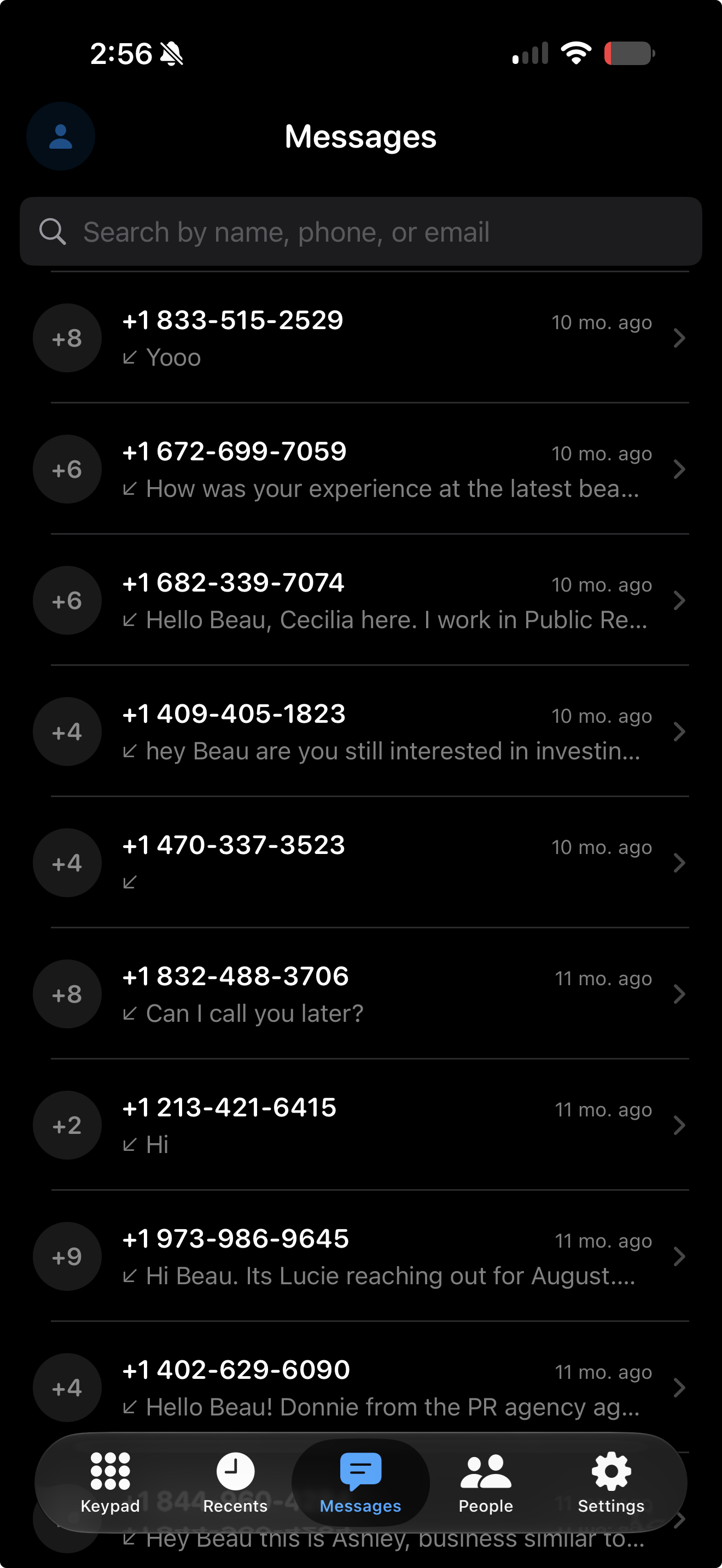
Tap the Messages tab to view your text conversations or start a new message to a contact.
The People tab lists your contacts, along with the teammate they're assigned to.
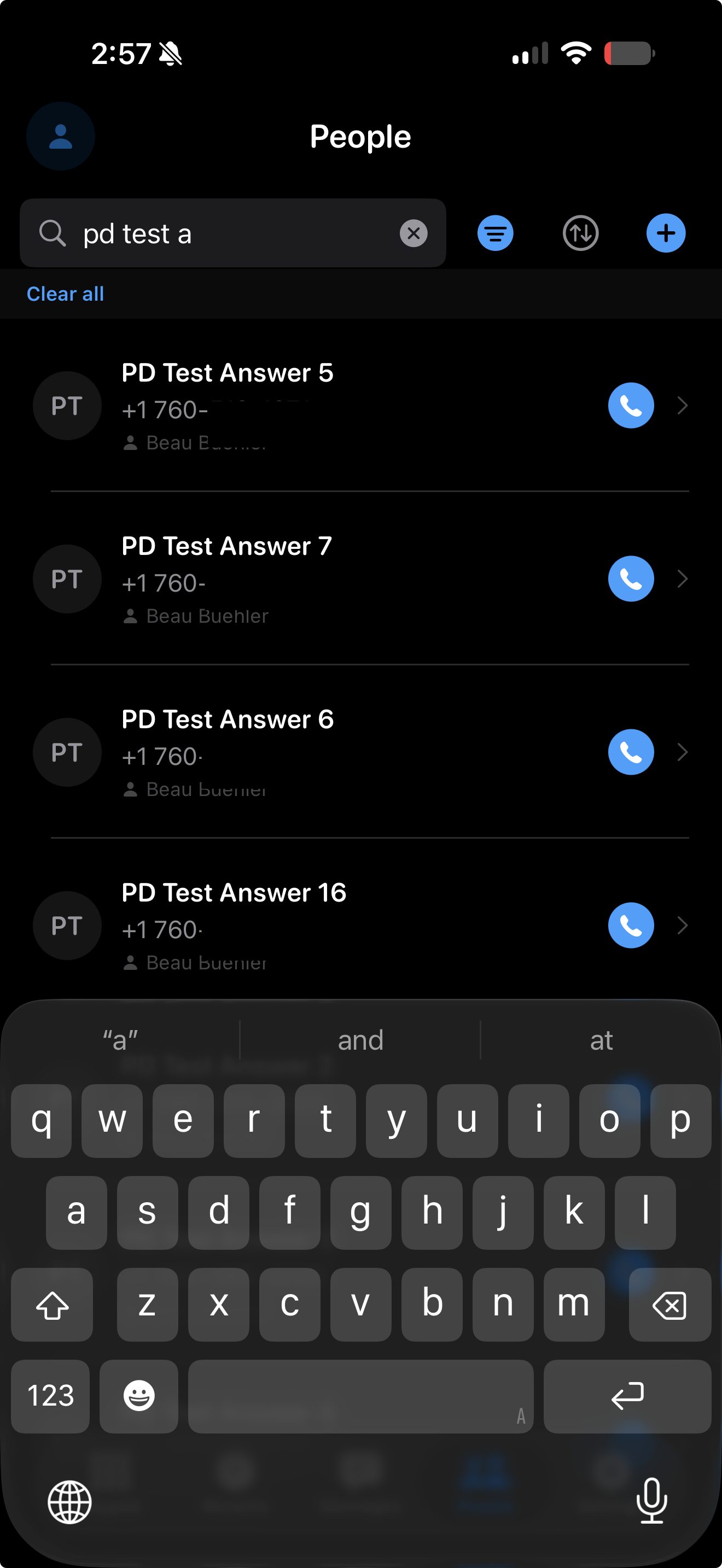
Note: Contacts added in the Symbo Dialer app stay within the app and won't sync to your phone's native Contacts app.
Inbound calls come through directly in the app, so you can answer, decline, or view caller details the same way you would an outbound call. If the call is coming from a contact saved in your Symbo account, you'll see their name and number in the app, since that contact lives in Symbo.
If you have call forwarding set up to your personal phone, incoming calls may ring on both your phone and the Symbo Dialer app at the same time.
Note: If you use call forwarding to your personal phone, turn it off before using the Symbo Dialer app to avoid calls ringing on both devices at once.
Do Not Disturb follows your iPhone's native DND setting and applies across all your Symbo devices at once, web and mobile. Turning DND on in one place turns it on everywhere; there's currently no way to set DND on one device only.
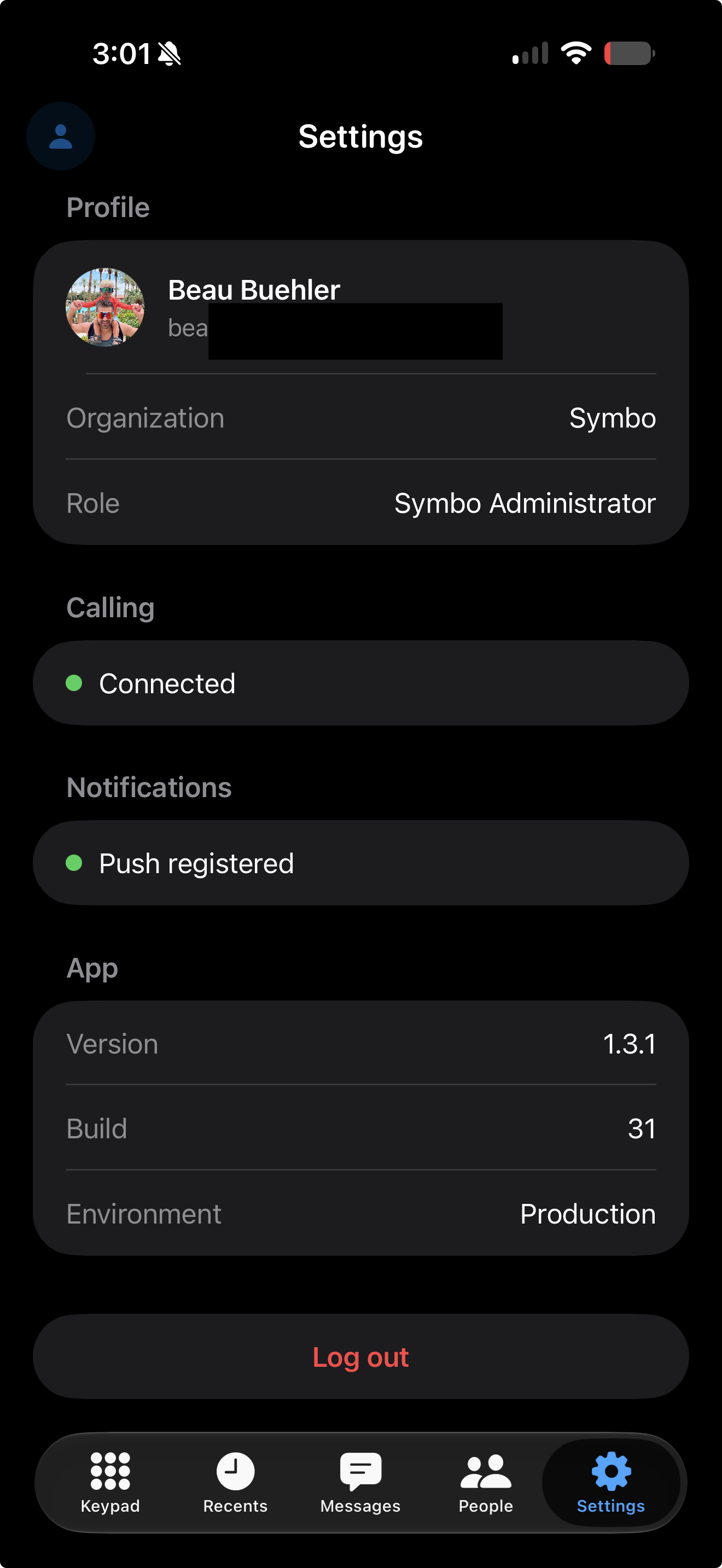
From the Settings tab, you can view your profile, organization, and role, check your Calling and Notifications connection status, and see your current app version. Log out is also available here if you need to switch accounts.
Use the iOS app for one-off calls, warm lead callbacks, and inbound calls on the go. Run Power Dial sessions from the web app.
Check your Caller ID setting before a call to make sure you're calling as the right number for your audience.
If Recents looks stale, a full app restart is the quickest fix.
Keep call forwarding off on your personal phone while using the app to avoid duplicate rings.
