Active Symbo account with a Power Dial plan
Contacts already in Symbo (via CRM sync, CSV import, or manual entry)
A connected CRM (required if importing from a CRM list)
From the People list - Select contacts directly inside Symbo and push them into a new session
From the Power Dialing page - Launch the Create power dial session modal and import contacts from Symbo filters or a connected CRM
Both paths lead to the same session view and dialing interface.
This works best when you want to dial a hand-selected or filtered group of contacts already inside Symbo.
From the left-hand sidebar, click the People icon.
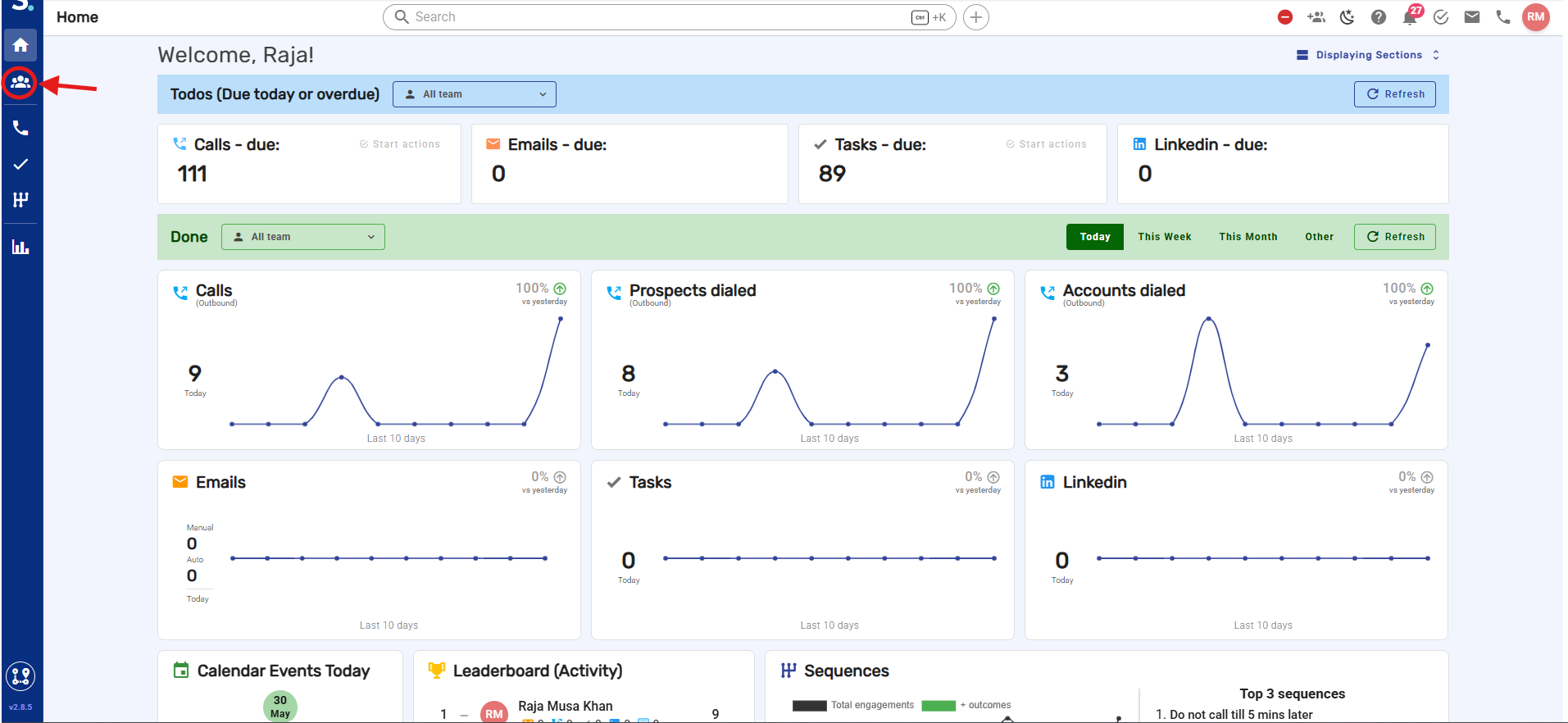
Check the top-left checkbox to select all contacts visible on the page. Once contacts are selected, a green bar appears at the bottom of the screen. Click Select all [X] contacts in that bar to include every contact matching your current filters, not just those visible on screen.
Use the Search bar or column filters to narrow down your list before selecting if needed.
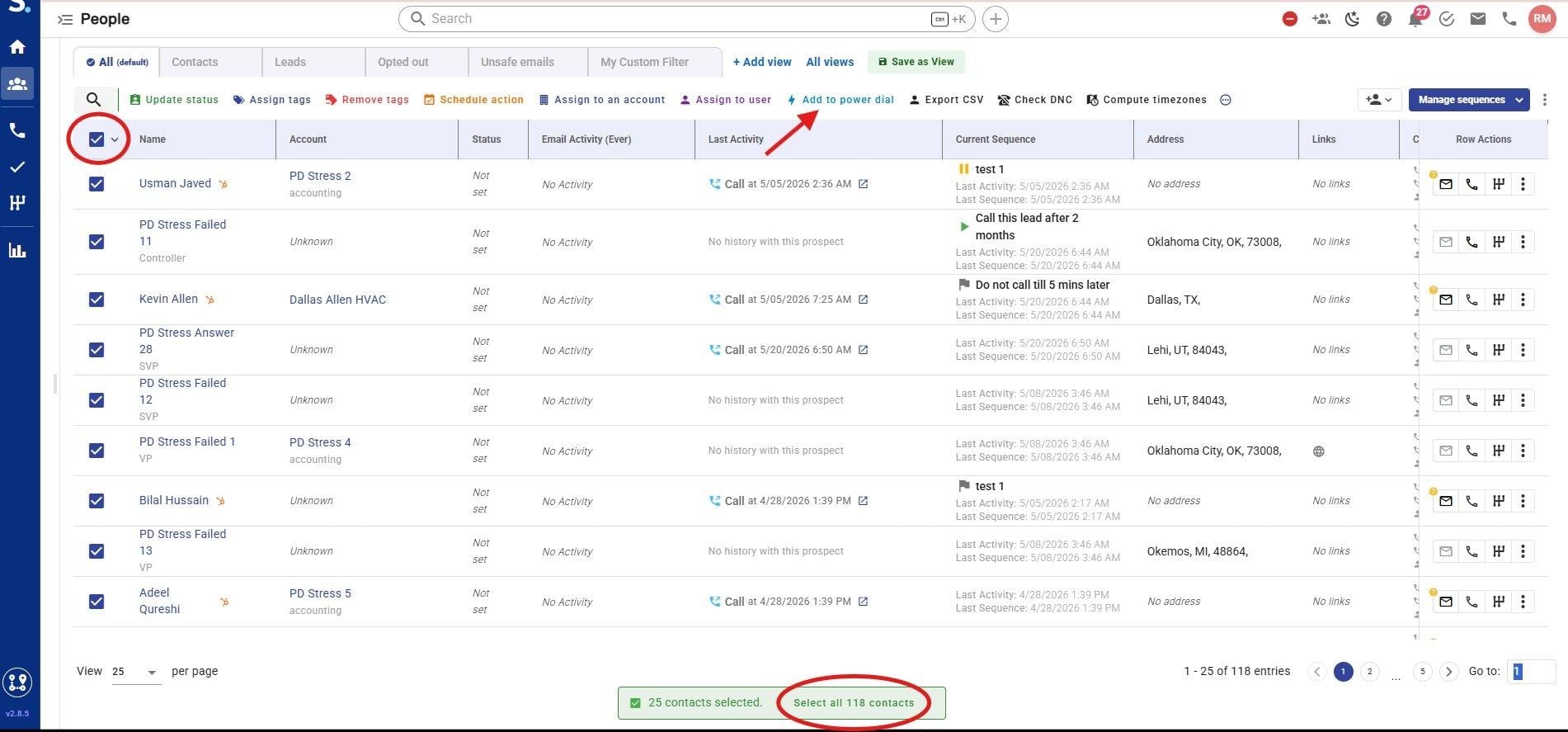
With contacts selected, click Add to power dial in the toolbar at the top of the People list. A modal will appear with two options:
Add to an existing session - Appends the selected contacts to a session already in progress
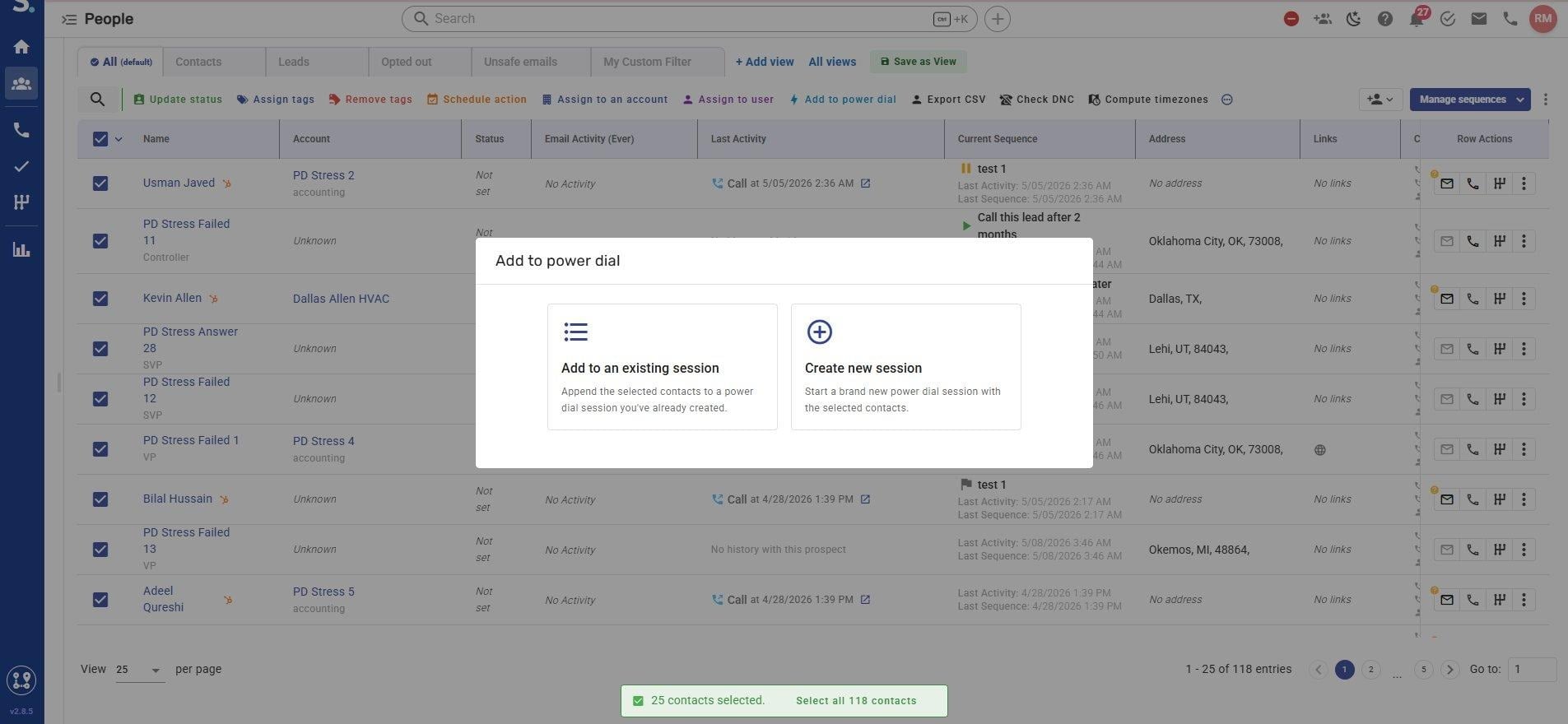
Create new session - Starts a brand new dial session with these contacts
Select Create new session.
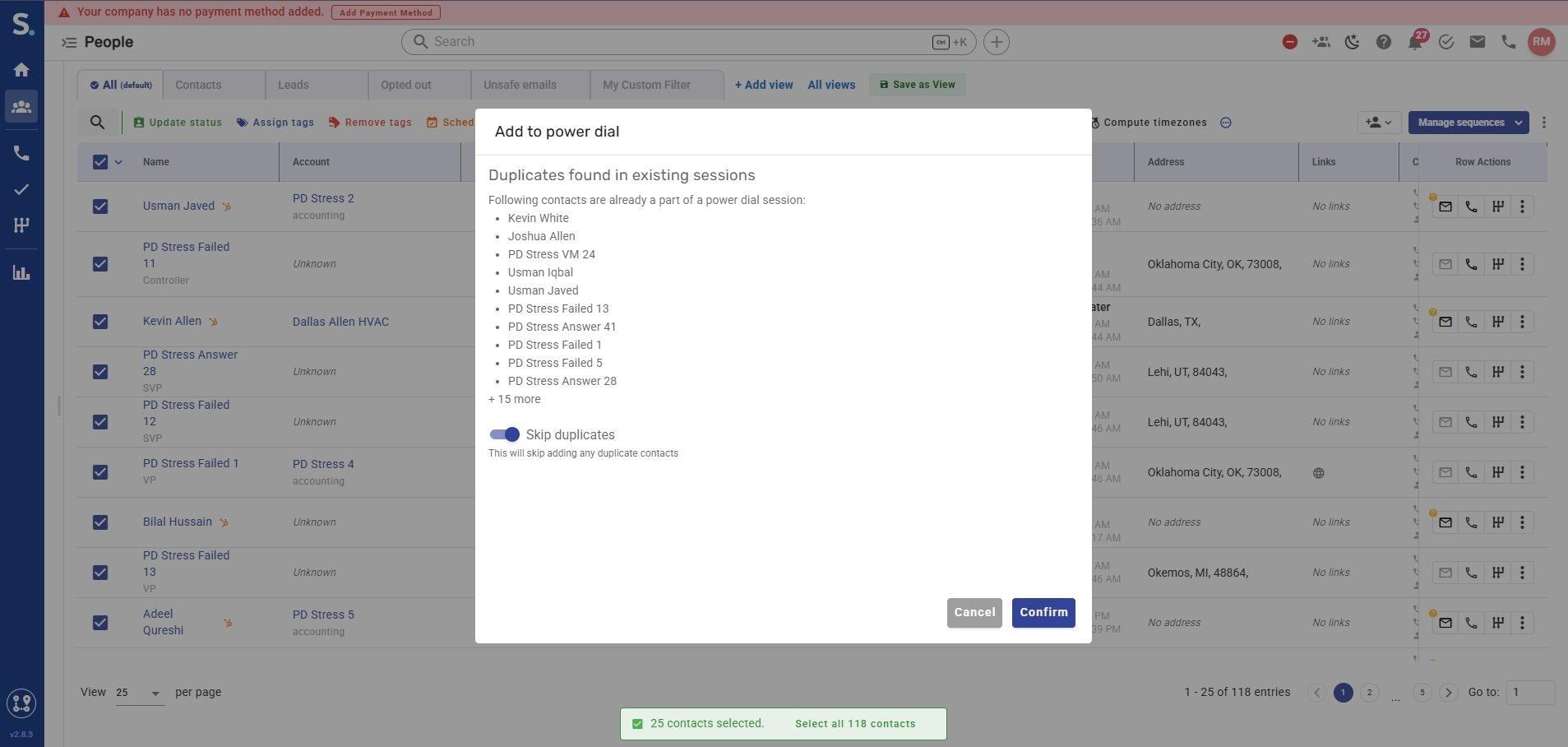
If any selected contacts already exist in another active session, Symbo will display a Duplicates found in existing sessions warning listing the affected contacts.
Toggle Skip duplicates ON to exclude those contacts and proceed with the rest, then click Confirm.
This works best when importing from a CRM list or filtering by Symbo tags, prospect status, or a previously uploaded CSV.
From the left-hand sidebar, click the Calls icon. This opens the Power Dialing page showing your active and past dial sessions.
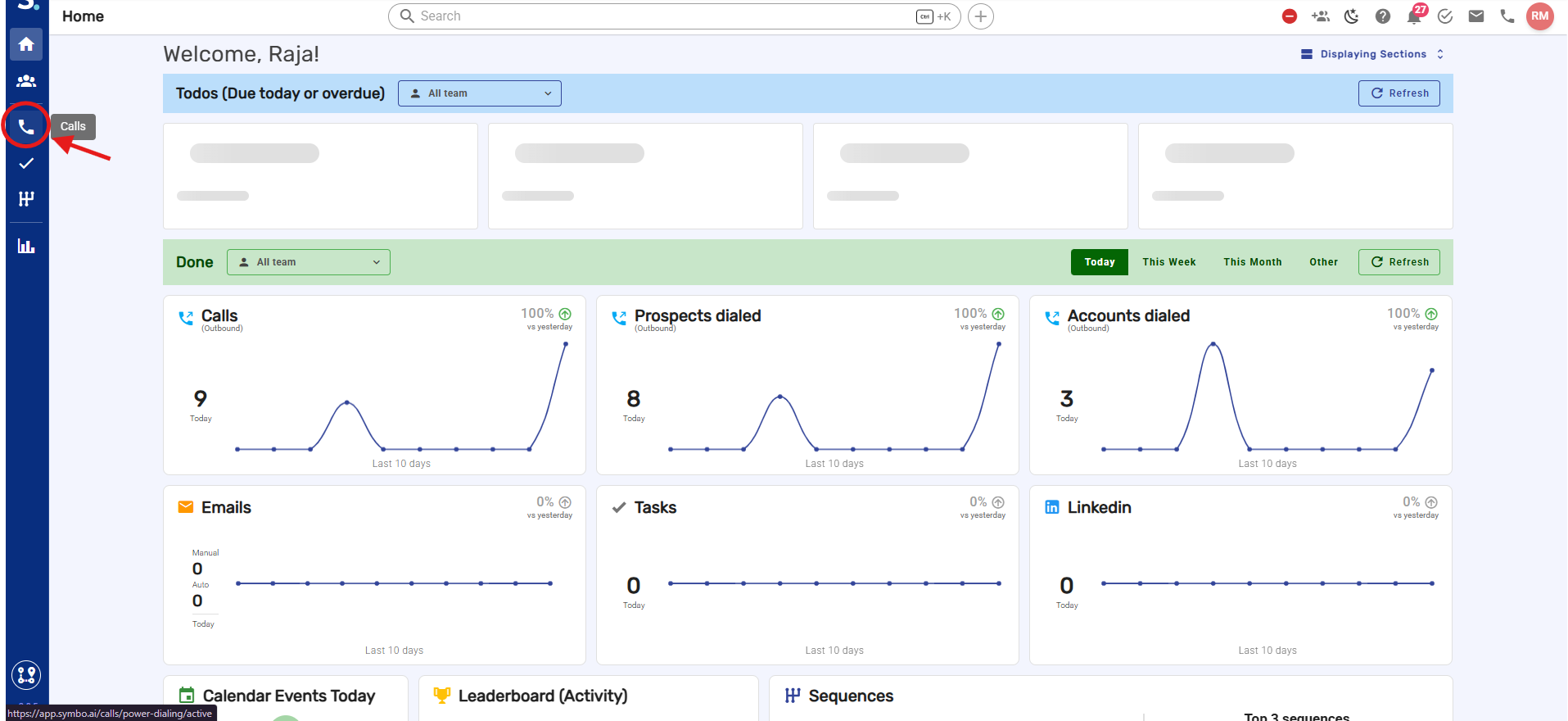
Click + Create dial session in the upper right corner.
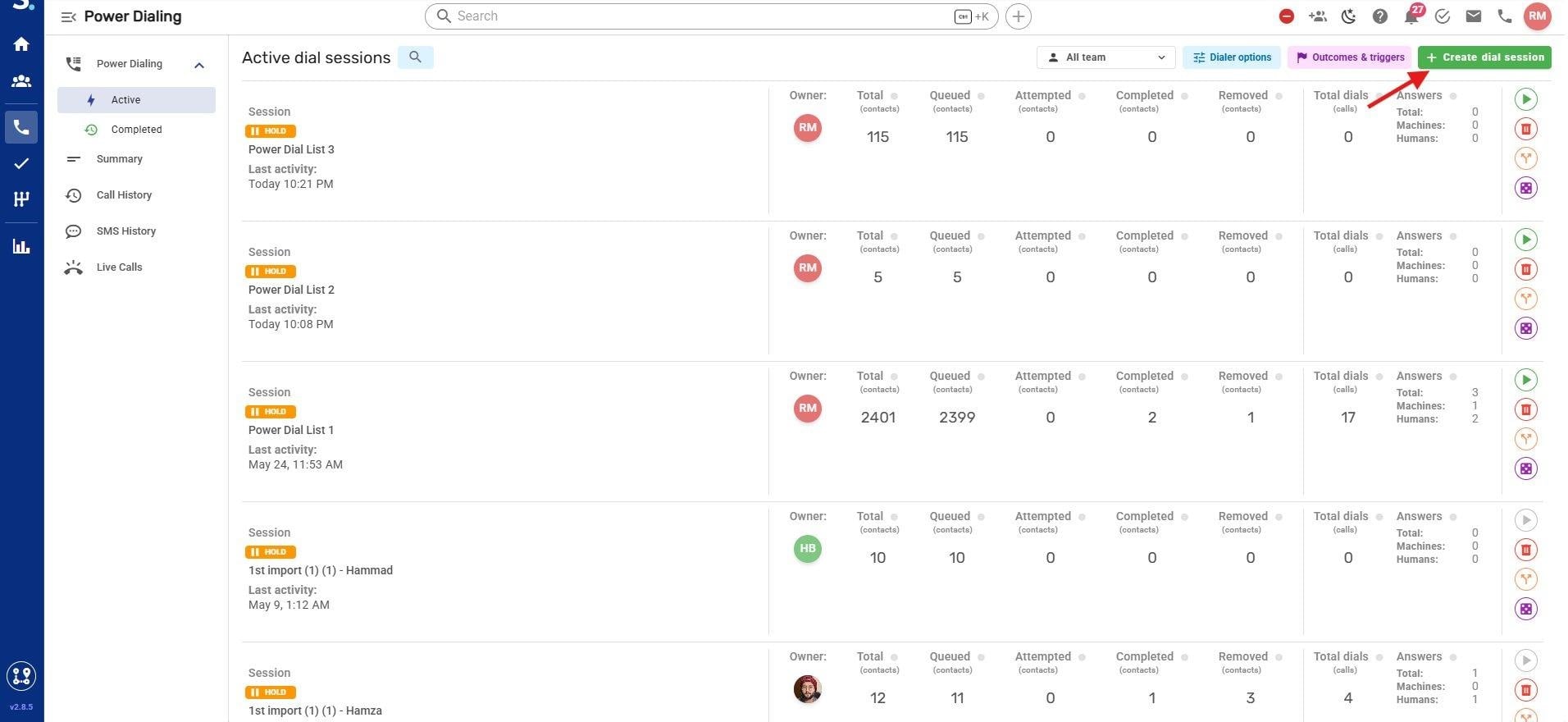
Active dial sessions page - click + Create dial session in the upper right to open the modal
The Create power dial session modal opens with two tabs: SYMBO and your connected CRM (e.g., HUBSPOT, SALESFORCE, GOHIGHLEVEL, ZOHO). The CRM tab only appears if you have a CRM connected to Symbo.
From the SYMBO tab
Use this to build a session from contacts already inside Symbo. You can filter by any combination of:
From tags - Select one or more contact tags
From prospect status - Filter by current prospect status
From CSV filename - Select a previously uploaded CSV file by name
Assign to user - Assign the session to a specific team member
Include contacts from - Scope the contact pool by team (defaults to All team)
At least one filter must be applied before the Add button becomes active. Once filters are set, a Total contacts from Symbo count appears (e.g., "Found 82 records") confirming how many contacts will be added.
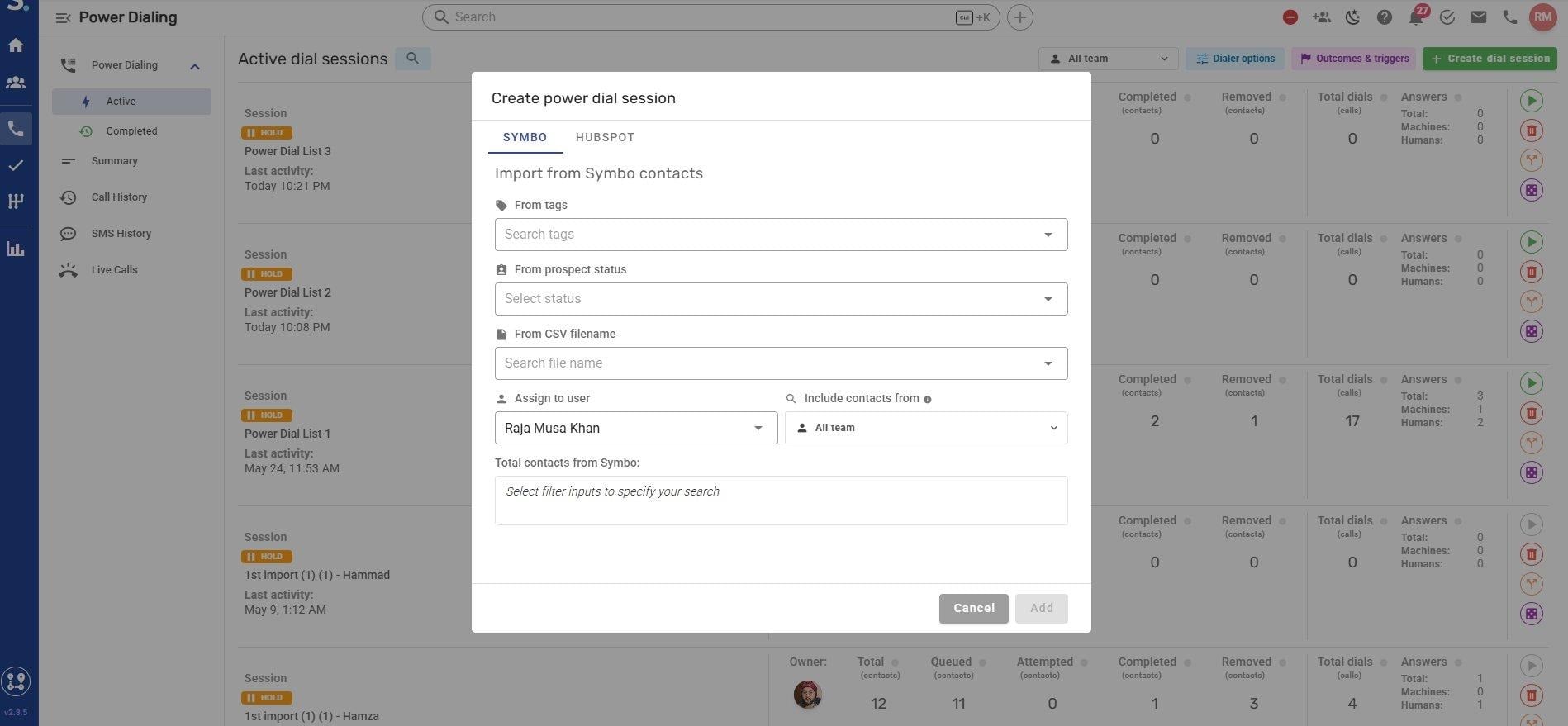
SYMBO tab - default empty state showing From tags, From prospect status, From CSV filename, Assign to user, and Include contacts from fields
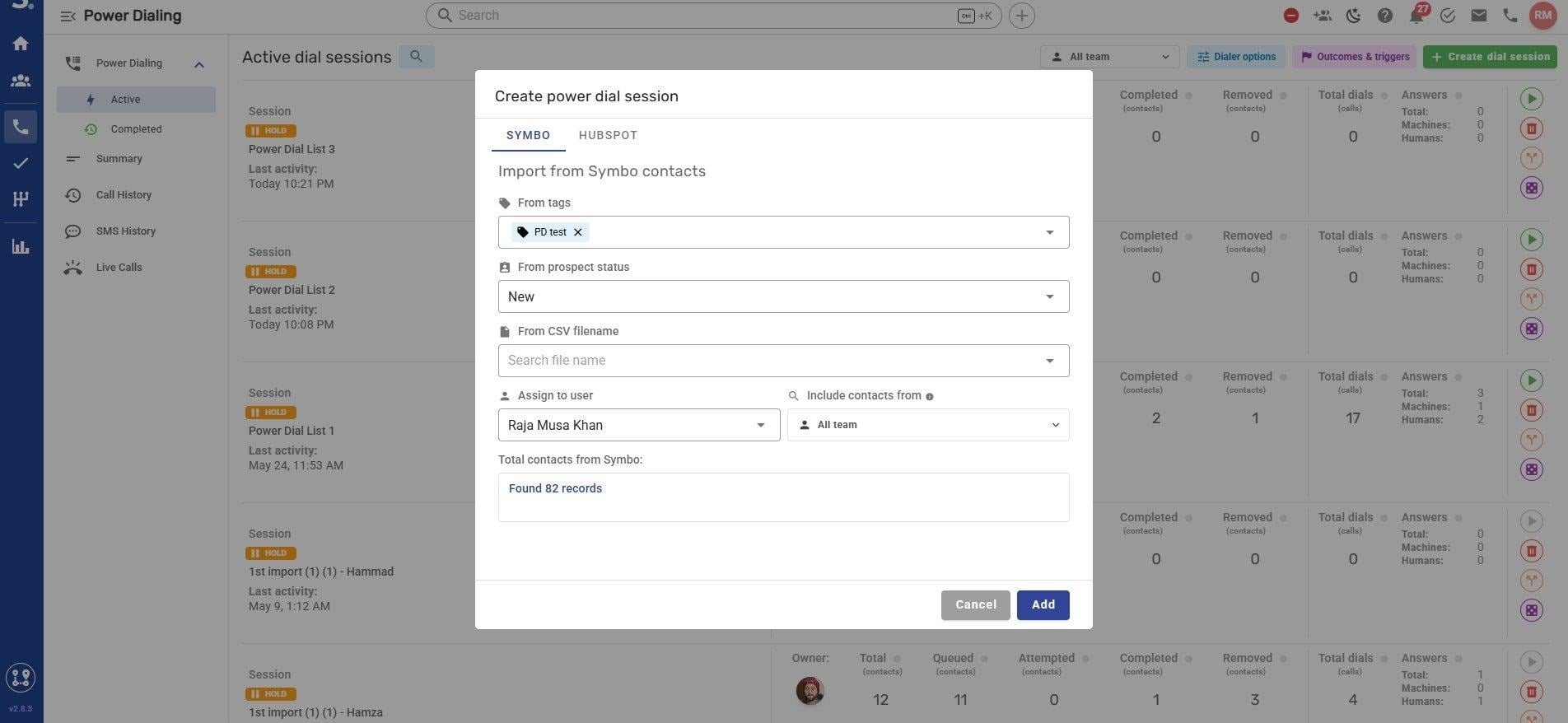
SYMBO tab - PD test tag selected, Found 82 records displayed at the bottom
Click Add to create the session.
From the CRM tab (e.g., HubSpot)
Use this to pull contacts directly from your connected CRM:
From CRM contacts - Select a CRM contact list
From CRM accounts - Select a CRM company or account list
Automatically pull contacts from the selected list - Toggle ON to have Symbo refresh the session every 15 minutes as new contacts are added to the CRM list. Note: enabling this dedicates the session to that CRM list, meaning you cannot manually add contacts from other sources afterward.
Assign to user - Assign the session to a specific team member
A Total records from CRM count confirms your selection (e.g., "Found 193 records") before you proceed.
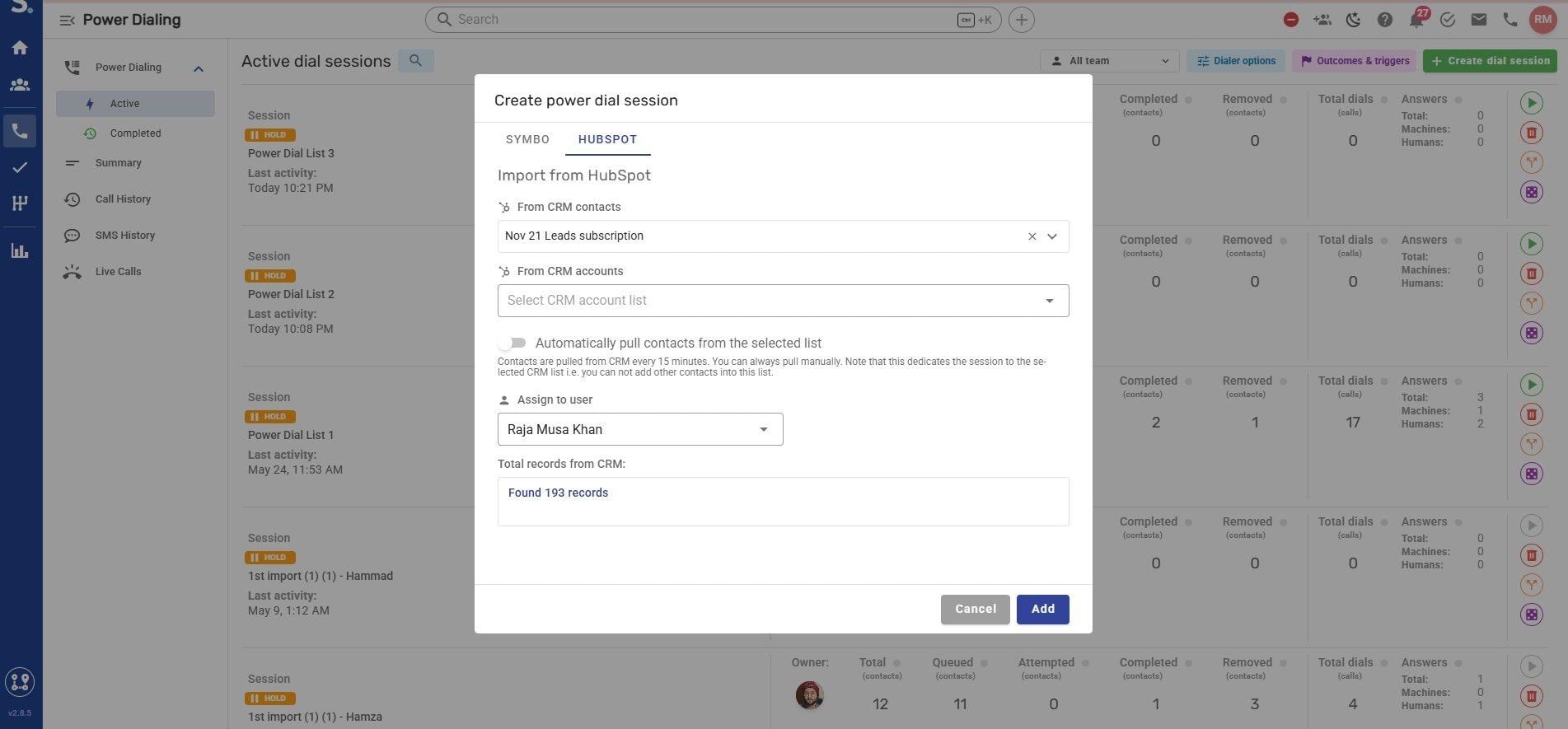
HubSpot tab - CRM contact list selected, Automatically pull contacts toggle visible, Assign to user set, Found 193 records displayed
Click Add to create the session.
If some contacts could not be added, Symbo will display:
The most common causes are a missing or invalid phone number, or the contact being blacklisted in your org. Check the affected contacts in the People list and confirm a valid phone number is present.
