Call Outcomes are the engine behind automation in Symbo. When configured correctly, they allow you to automatically move prospects through your pipeline, control Power Dialer behavior, assign ownership, update your CRM, and trigger advanced workflows after every call. This guide shows you how to design, configure, and optimize Call Outcomes and Triggers so your sales process runs on autopilot.
Administrator or Org Settings access
Power Dialer enabled (for Power Dialer triggers)
CRM connected and mapped (for status and field updates)
At least one sequence created (for Engage/End Sequence triggers)
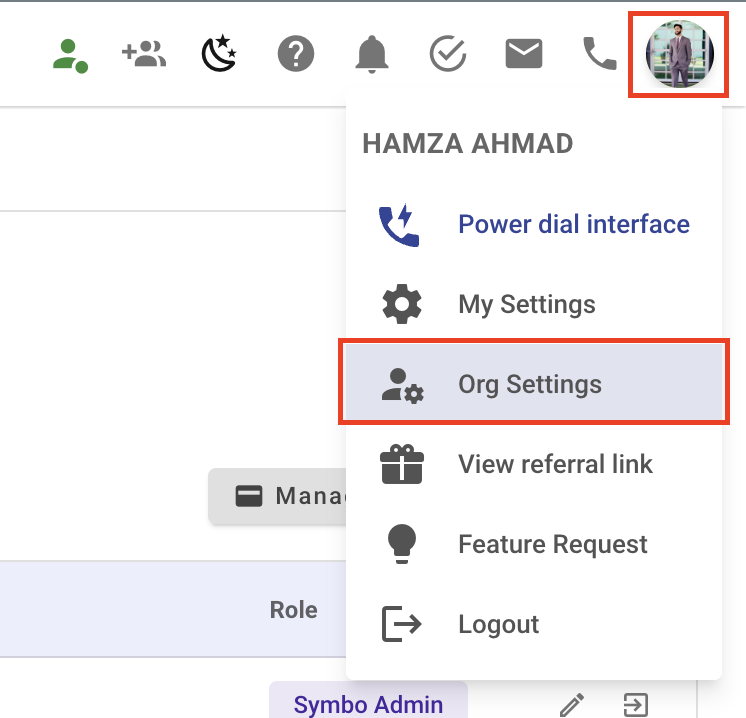
From the Symbo Dashboard click on your Profile Icon/Avatar and open Organization settings.
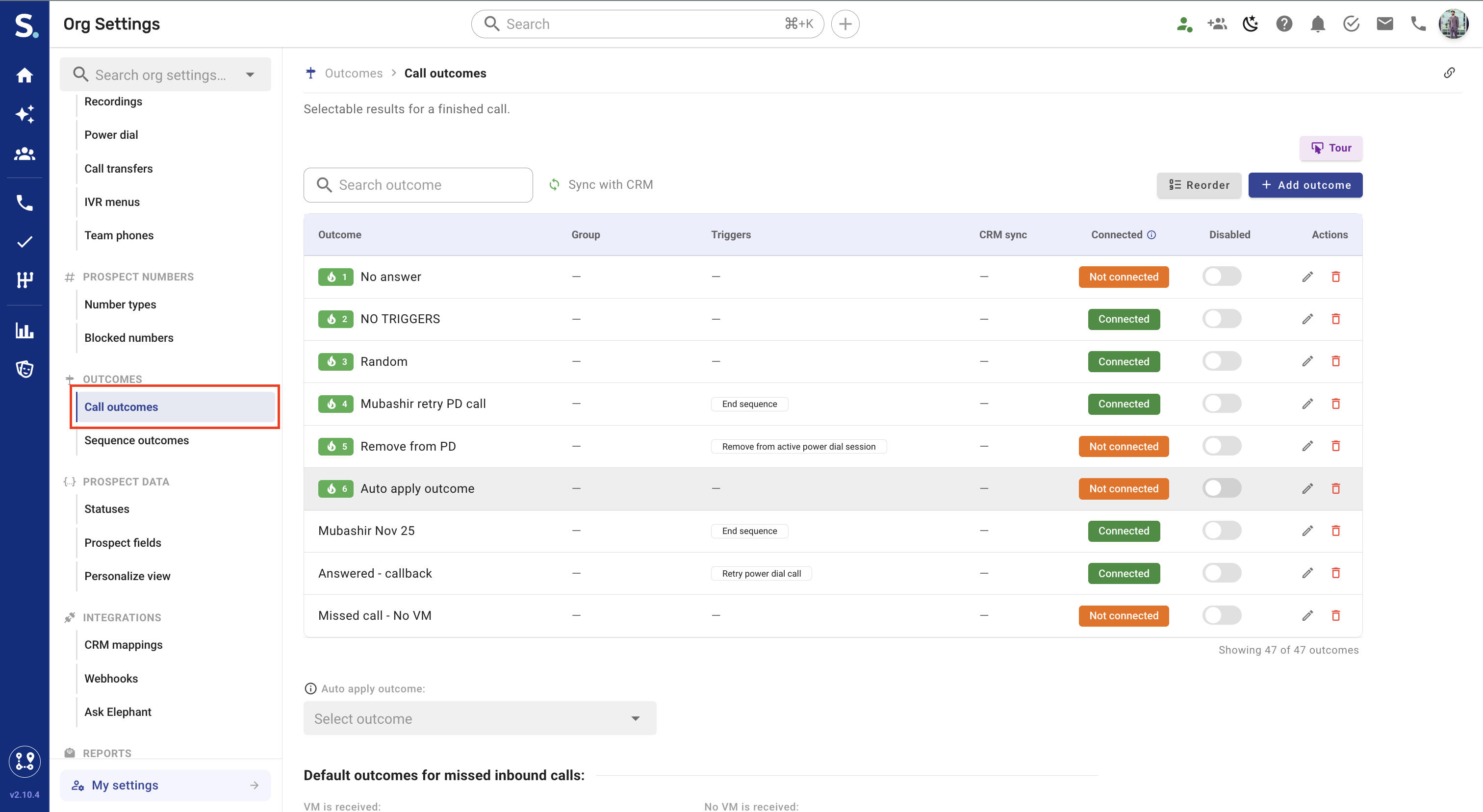
Go to Outcomes → Call outcomes, or head straight to app.symbo.ai/org-settings?type=call-outcomes.
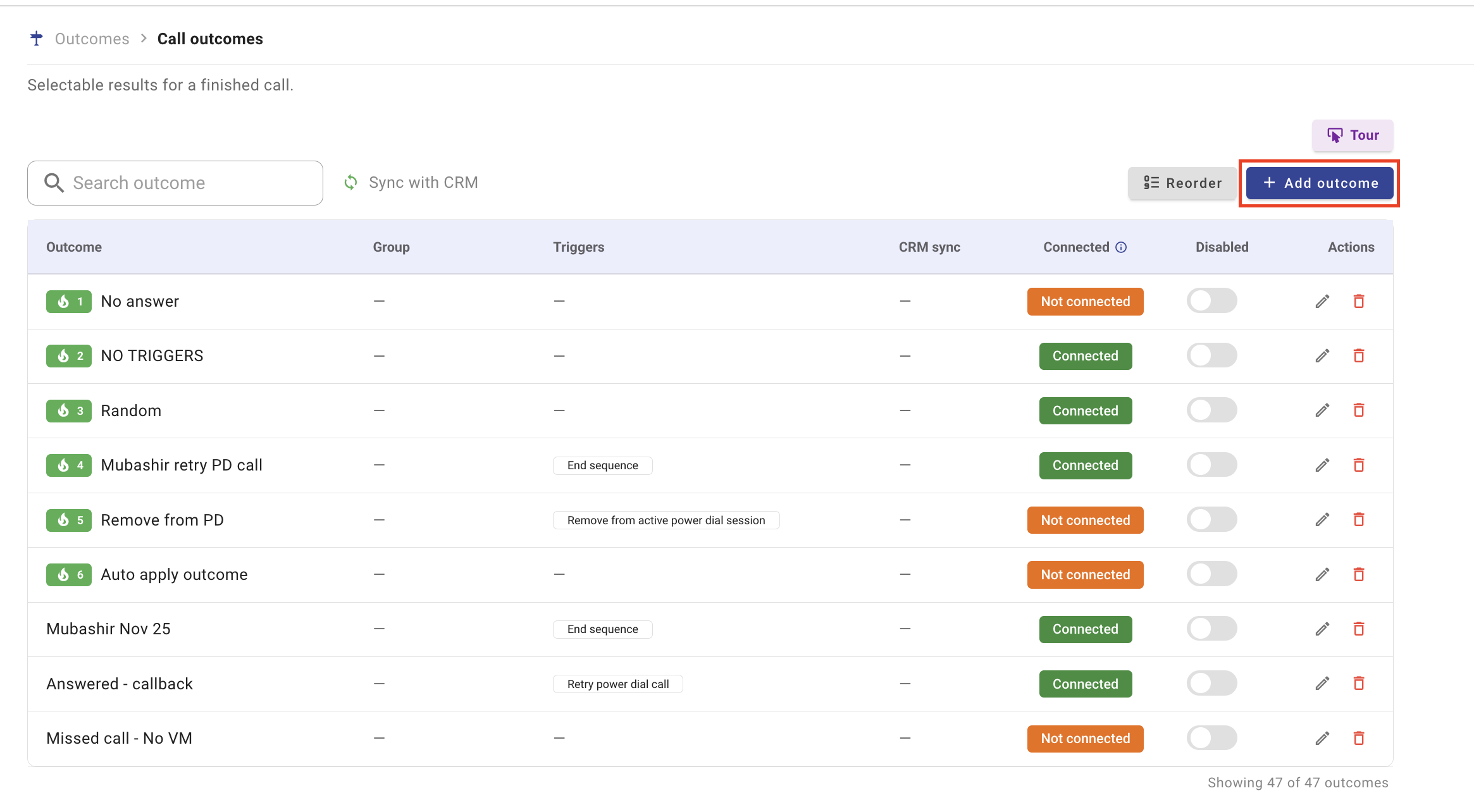
Click Add outcome.
Give it a clear, business-meaningful name (e.g., Interested – Needs Closing, Bad Timing, Wrong Number).
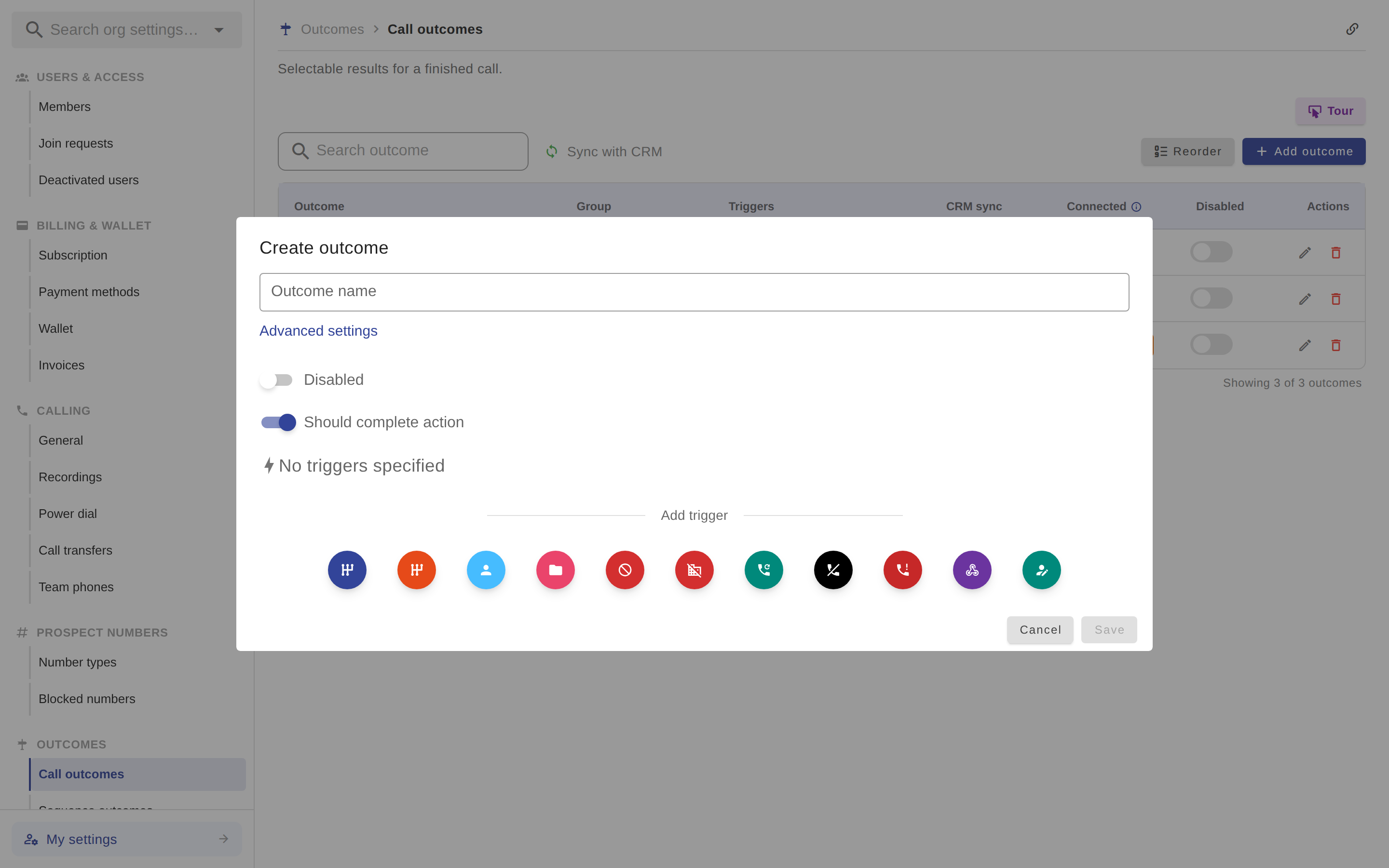
Click Save to confirm your new Call Outcome.
Use the Auto apply outcome selector at the top of the page if you want a default outcome applied automatically after calls. This setting saves on its own as soon as you pick an outcome — no extra save step.
On Outcomes → Call outcomes, click Edit (pencil icon) under Actions on your outcome.
Click Add trigger.
Select the trigger you want (e.g., Update Prospect Status, Engage Sequence, Assign User).
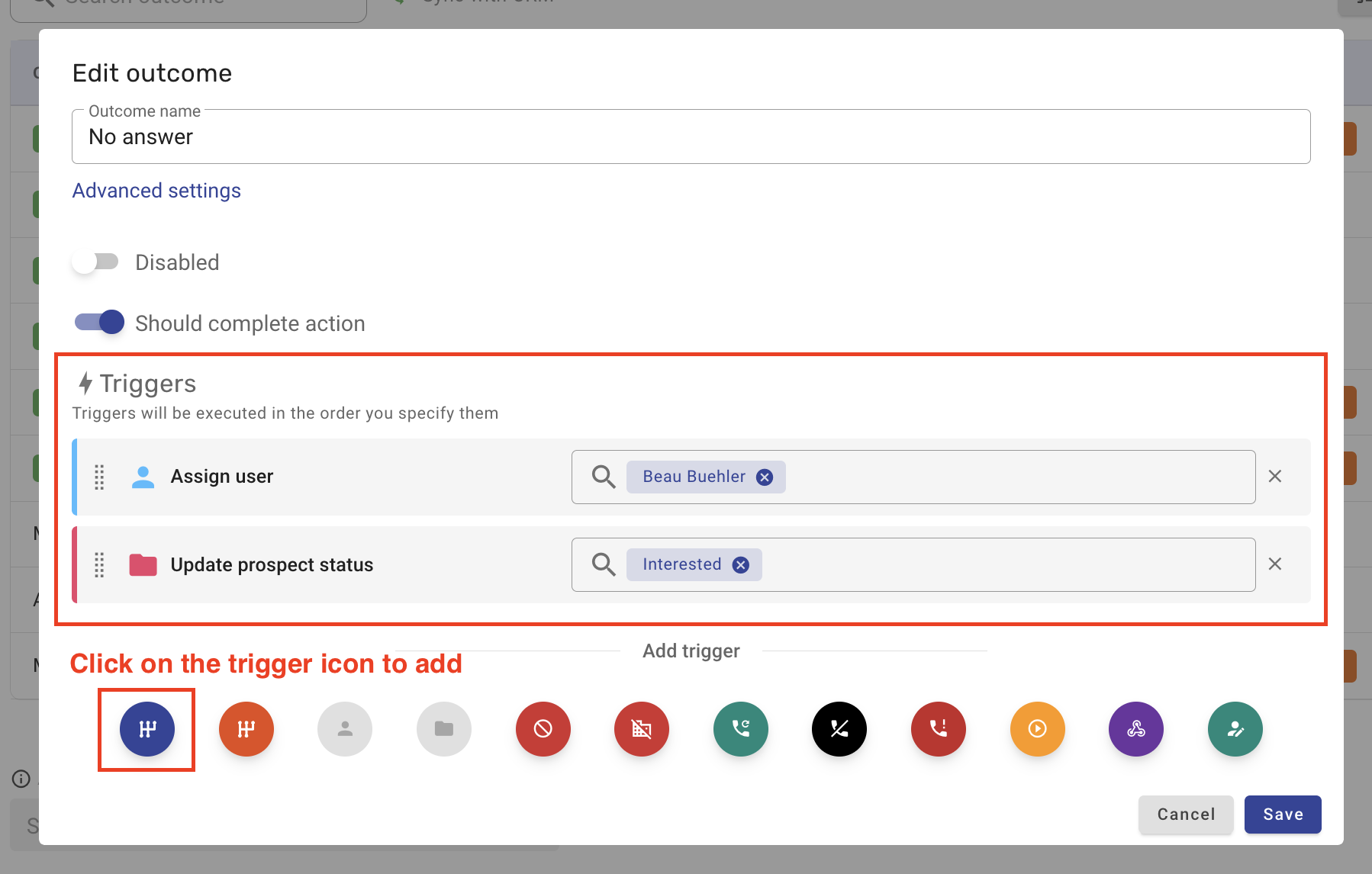
Some triggers require configuration (e.g., selecting a status, user, sequence, field, or delay time).
Others require no setup (e.g., Remove from Active Power Dial Session, Blacklist Number).
You can add more than one trigger.
Triggers execute sequentially, in the order they are listed.
Click Save after adding all triggers.
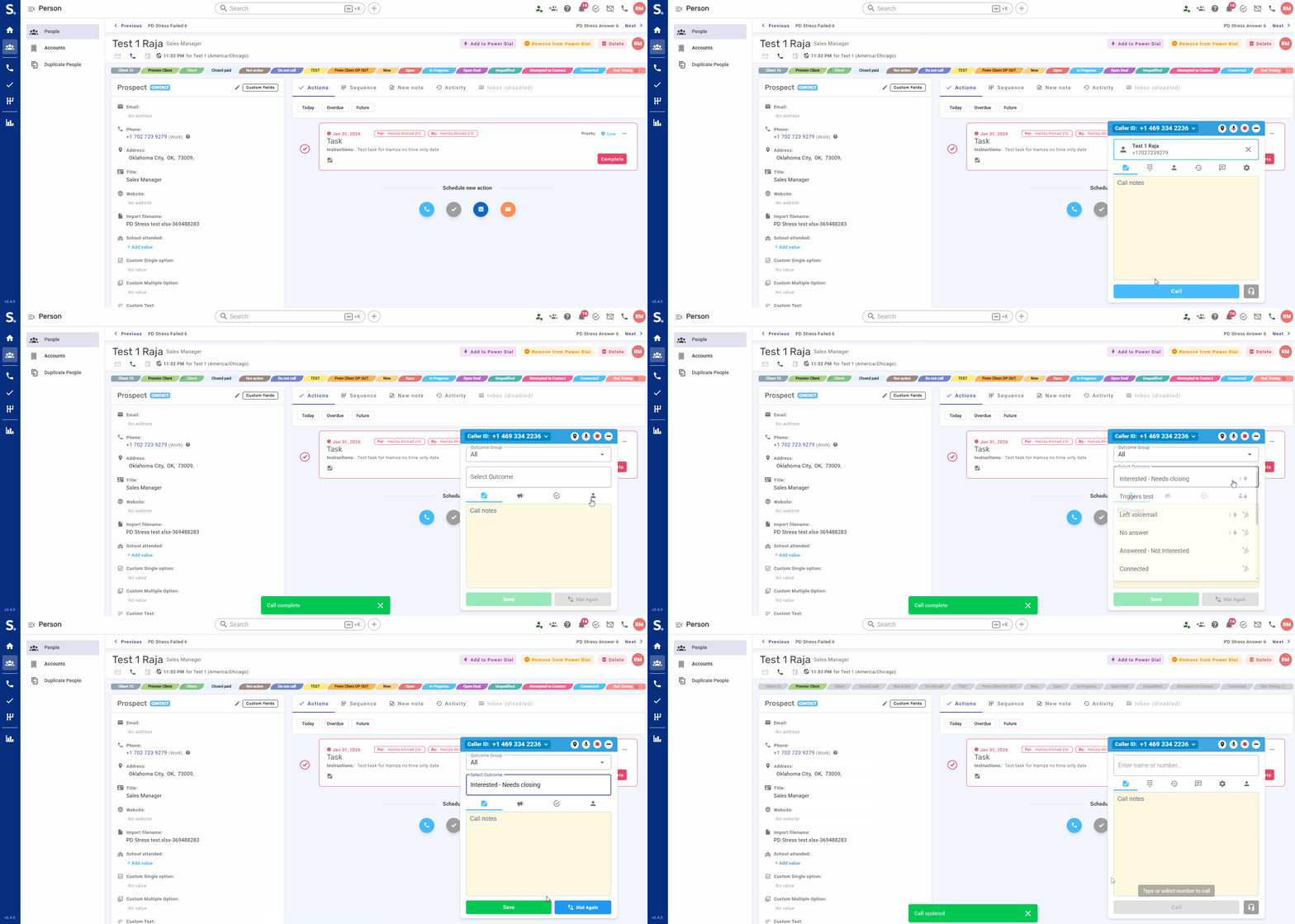
Sub-step: Open a Prospect Profile
Go to any prospect record.
Sub-step: Make a Test Call
Place a call and end it.
Sub-step: Apply Your Outcome
Select the outcome you configured and click Save.
Sub-step: Verify the Result
Check that the trigger actions ran:
Status changed
Sequence engaged or ended
Owner reassigned
Power Dialer behavior updated
CRM fields synced
Sub-step: Adjust If Needed
Return to Organization settings → Outcomes → Call outcomes to refine your configuration.
Sub-step: Start a Power Dial Session
Dial several prospects.
Sub-step: Trigger Different Scenarios
Drop a voicemail
Let a call fail
Apply an outcome manually
Sub-step: Watch Buckets Update
Verify movement between:
Queued
Attempted
Completed
Removed
Sub-step: Verify CRM Sync
Open the prospect in your CRM and confirm:
Status updates
Field updates
Notes or tags
Each section below guides you how to setup and optimize your outcome triggers
What it does:
Automatically updates the prospect’s pipeline status.
When to use:
Move leads through sales stages
Track qualification progress
Drive CRM reporting
How to configure:
Edit your outcome.
Add trigger → Update Prospect Status.

Select the desired status.
Save.
What happens after:
The prospect status changes instantly.
If mapped, it syncs to your CRM.
What it does:
Automatically enrolls a prospect into a sequence.
When to use:
Follow-ups
Nurturing workflows
Demo scheduling
How to configure:
Add trigger → Engage Sequence.

Select the sequence.
Save.
What happens after:
The prospect appears in the selected sequence. (Be careful when selecting prospects already engaged in another sequence)
What it does:
Stops active sequences.

Two modes:
Global: Ends all active sequences
Specific: Ends only one selected sequence and applies a sequence outcome
When to use:
Prospect becomes qualified
Deal enters closing stage
Prospect opts out
What it does:
Transfers ownership of the prospect.

When to use:
When assigning to new users on your Team:
SDR → Account Executive
Account Executive → Closer
Team handoffs
What it does:
Moves the prospect to the Removed bucket in Power Dialer.

When to use:
Qualified leads
Do-not-call requests
Compliance risks
What it does:
Moves a completed call back to the Queued bucket after a delay.

When to use:
Call-back requests
Gatekeeper conversations
What it does:
Blocks the phone number from being dialed again by anyone in your org.

When to use:
Legal compliance
Explicit “do not call” requests
What it does:
Marks only the dialed number as invalid on the contact.

When to use:
Contacts with multiple phone numbers
Data hygiene improvements
What it does:
Enrolls the prospect into a sequence that exists inside your CRM (such as HubSpot), instead of a sequence built inside Symbo.
When to use:
When your team already runs sequences in HubSpot (or another CRM)
When marketing or sales ops manages automation directly in the CRM
When you want Symbo to trigger CRM-native workflows after calls
How to configure:
Open Organization settings → Outcomes → Call outcomes.
Edit an existing Call Outcome or create a new one.
Click Add Trigger and select Trigger CRM Sequence.
Choose the CRM sequence from the dropdown list.
The list will mirror your CRM sequences (e.g., HubSpot sales sequences).
Click Save.
What happens after it runs:
When the Call Outcome is applied:
Symbo will initiate the trigger in your CRM.
The prospect is enrolled directly into the selected CRM sequence.
The CRM controls all follow-up actions (emails, tasks, delays, automation).
Common mistakes:
Expecting the sequence to appear inside Symbo (it runs only in the CRM)
Selecting a CRM sequence that is inactive or restricted
Using this trigger without a properly connected CRM
Confusing this with the Engage Sequence trigger (which runs Symbo sequences, not CRM sequences)
What it does:
Sends call and prospect data to an external system.

When to use:
Zapier automations
Analytics
Compliance logging
What it does:
Updates any default or custom field on the prospect.

When to use:
Call summaries
Qualification notes
Interest tagging
Outcome Name: Interested – Needs Closing
Triggers in order:
Remove from Active Power Dial Session
End Sequence
Update Prospect Status → Open Deal
Assign User → Closer
Update Prospect Field → Summary
Result:
One click transitions a lead from active dialing into the closing pipeline, stops all outreach, assigns the closer, updates CRM records, and preserves context.
Design outcomes around business states, not call results
Use clear and descriptive names
Stack triggers strategically
Always think in terms of “What should never happen again after this outcome?”
Forgetting to remove qualified prospects from Power Dialer
Not using Assign User for ownership handoffs
Missing CRM mappings
Overusing generic outcomes
