
Prerequisites
Admin access (required for reordering the organization’s outcomes).
Active Call Outcomes already created in your organization settings.
Step 1: Configure and Customize Hotkeys based on Outcomes
Since hotkeys are automatically assigned to your top six outcomes, you’ll want to ensure your most frequent results are at the top of your list.
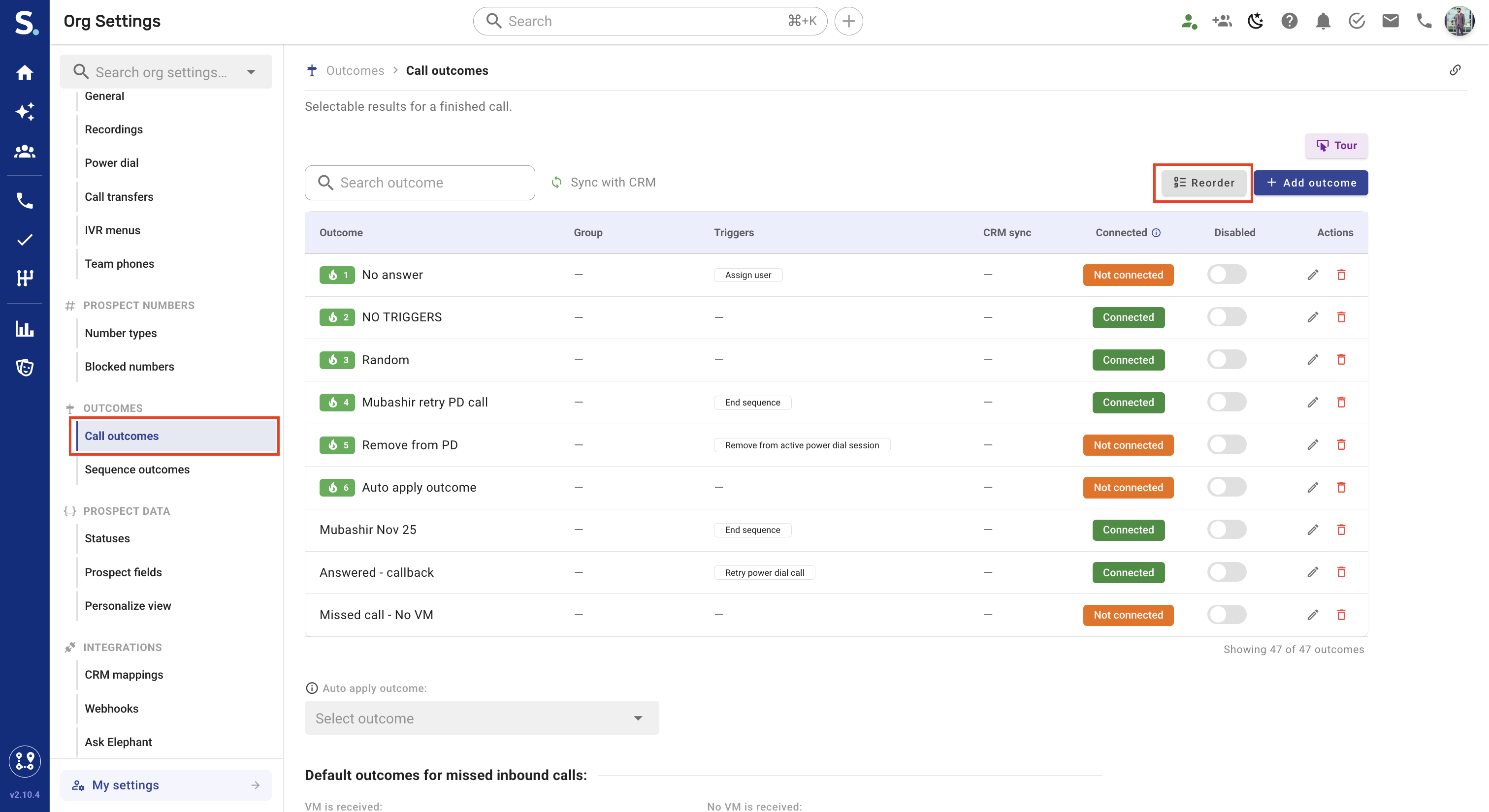
Navigate: In your Symbo dashboard, click your profile icon in the top-right, open Organization settings, and go to Outcomes → Call outcomes.
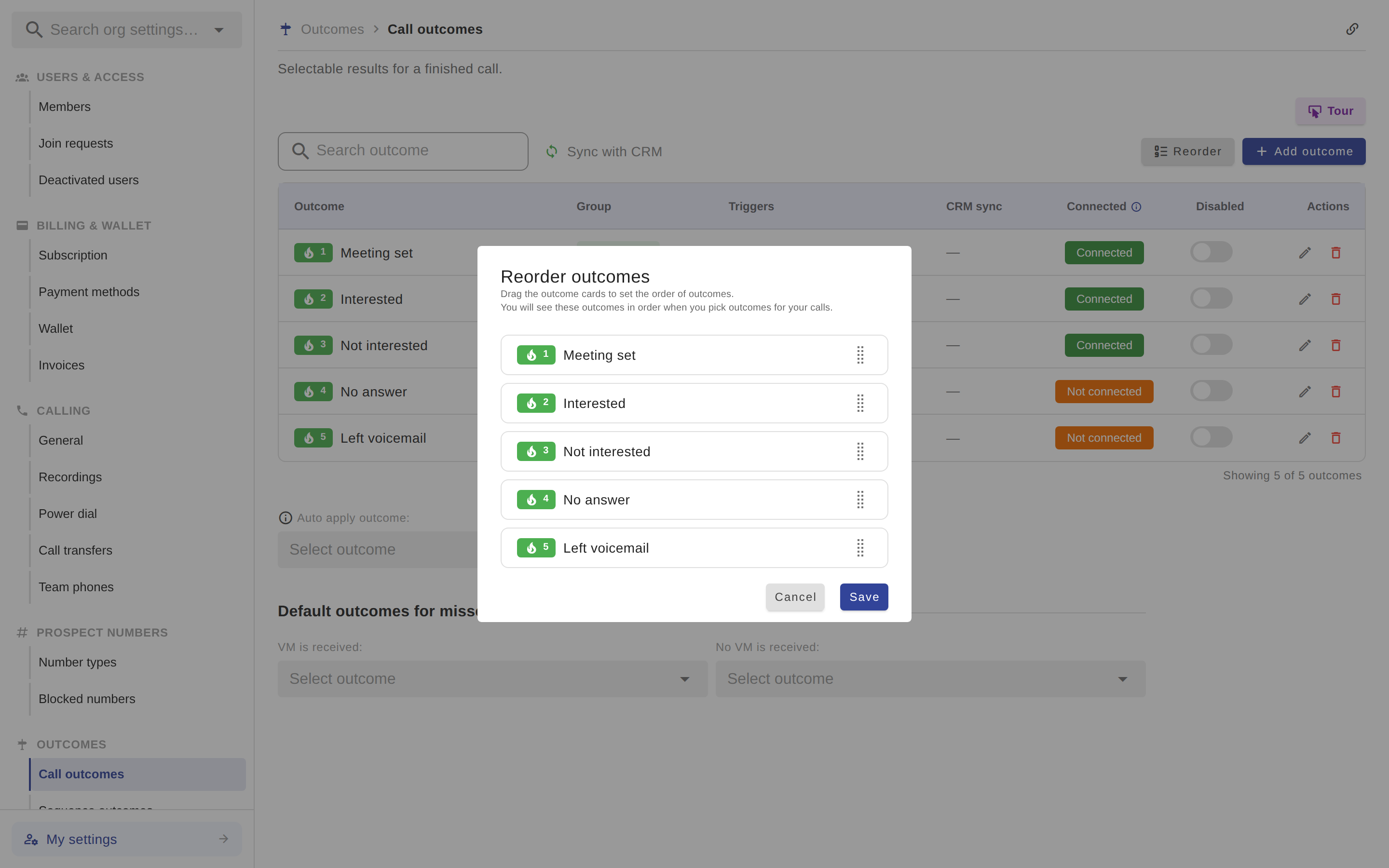
Reorder: Click the Reorder button above the outcomes table — a dialog opens where you can drag outcomes into a new order.
Map keys to outcomes: Put your six most common dispositions (for example, "No Answer" or "Interested") in the top six slots. Assign numbers 1–6 to these preset call dispositions (for example, 1 = No Answer, 2 = Interested).
Save and sync: Click Save to finalize the order and then refresh your page; Hotkey 1 will now always trigger your first outcome, Hotkey 2 the second, and so on.
Step 2: Using Hotkeys in the Dialer Widget
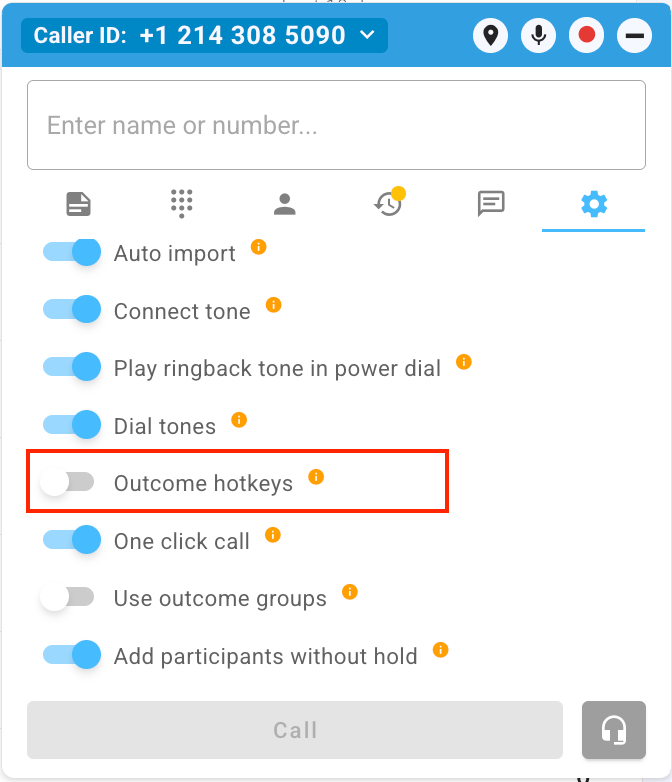
Enable Outcome Hotkeys: In the Dialer Widget click on Settings (gear icon) > Toggle on Outcome Hotkeys.
Important: Click outside the "Notes" field before pressing a key to avoid typing the number into your call notes. ⚠Using a Hotkey during an ongoing call will end the call.
Select: Press a number key (1–6) during or after a call to instantly apply that outcome. “V” is for Pre-recorded Voice Mail and “D” is for Double Dial.
Review: Observe the pop-up menu that appears to confirm the correct outcome was selected.
Save: Press the same number again (or hit Enter) to lock the outcome and save the call record.
Advance: If using an Action Flow, this "double-tap" will automatically save and trigger the next call in your queue.
Step 3: Using Hotkeys in Power Dialer
Launch: Start your Power Dialer session in either Single-line or Multi-line mode.
Apply: Press the corresponding number key (1–6) as soon as you identify the call result to mark your desired outcome. ⚠Using a Hotkey during an ongoing call will end the call.
Resume: Press the same hotkey a second time to "lock in" the result and resume dialing the next contact.
Monitor: Watch as the system automatically moves to the next lead, replacing the need to click "Resume Calling" manually.